#63 · Manage Labels at the Org Level
We have enhanced the existing app label management functionality to provide better organization-level control and scalability. Previously, labels were managed on a per-service basis, but now you can define and update labels centrally at the organization level while still retaining the flexibility to assign and customize labels at the service level.
What are Labels?
Service labels are custom tags that help you categorize, filter, and organize your applications. They are especially useful for teams managing large numbers of apps or workflows.
How it works
- Navigate to the Organization Settings by clicking on the name of your org.
- Select the Labels section.

- Create or update org-level labels with names and dedicated colors.
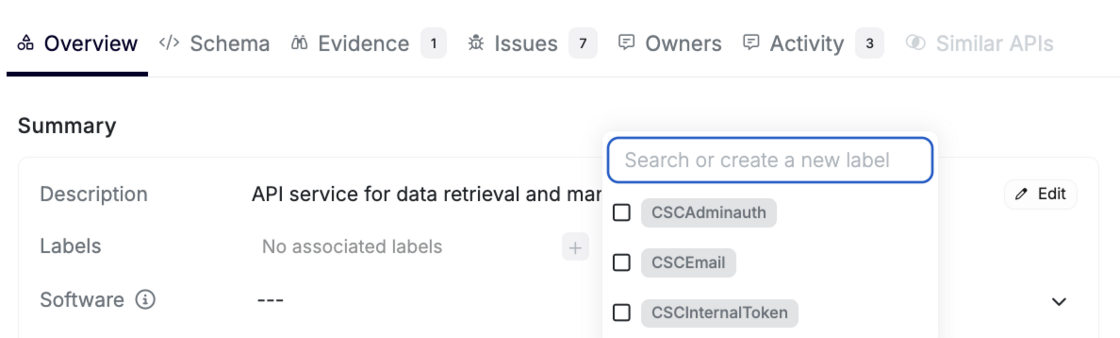
- Go back to Inventory -> All Services, click on the Service, and assign a dedicated label to the service in question.
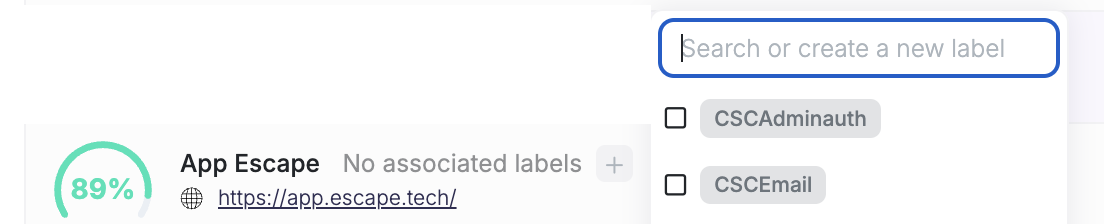
- You can also add a label to each scanned application by going to the Security Scan -> Tested Applications page and clicking on the plus button. Add as many labels as you want!
Improvement Highlights
Org-Level Label Management
You can now create and update standardized labels at the organization level. Existing app-level labels will remain unaffected unless explicitly overridden.
Permissions Control
Organization admins and editors retain exclusive permissions to manage org-level labels.
Users with viewer permissions can view or use these labels without altering org-level definitions.
Simplified Bulk Updates
Modifications made to org-level labels automatically propagate to all associated apps, reducing manual updates.
Now it's the perfect time to organize your inventory 😉