AI Studio
AI Studio turns real findings into custom scenarios that Cascade runs during your AI pentests. You feed it pentest reports, existing Escape issues, or bug bounty reports, and Escape generates replayable business-logic scenario templates from them. Enable a template on an AI pentest profile and every assessment of that profile tests it. This page covers how to create scenario templates, connect them to profiles, and follow what they find.
Beta
AI Studio is in Beta. One import runs at a time: if a generation is already in progress, starting the Studio Creator returns you to the running import.
Create Scenarios with the Studio Creator
Open AI Studio > Studio Creator (or click Scenario Studio Creator on the Scenarios page) and pick where the scenarios come from. Escape reads the findings in your sources and turns them into scenario templates.
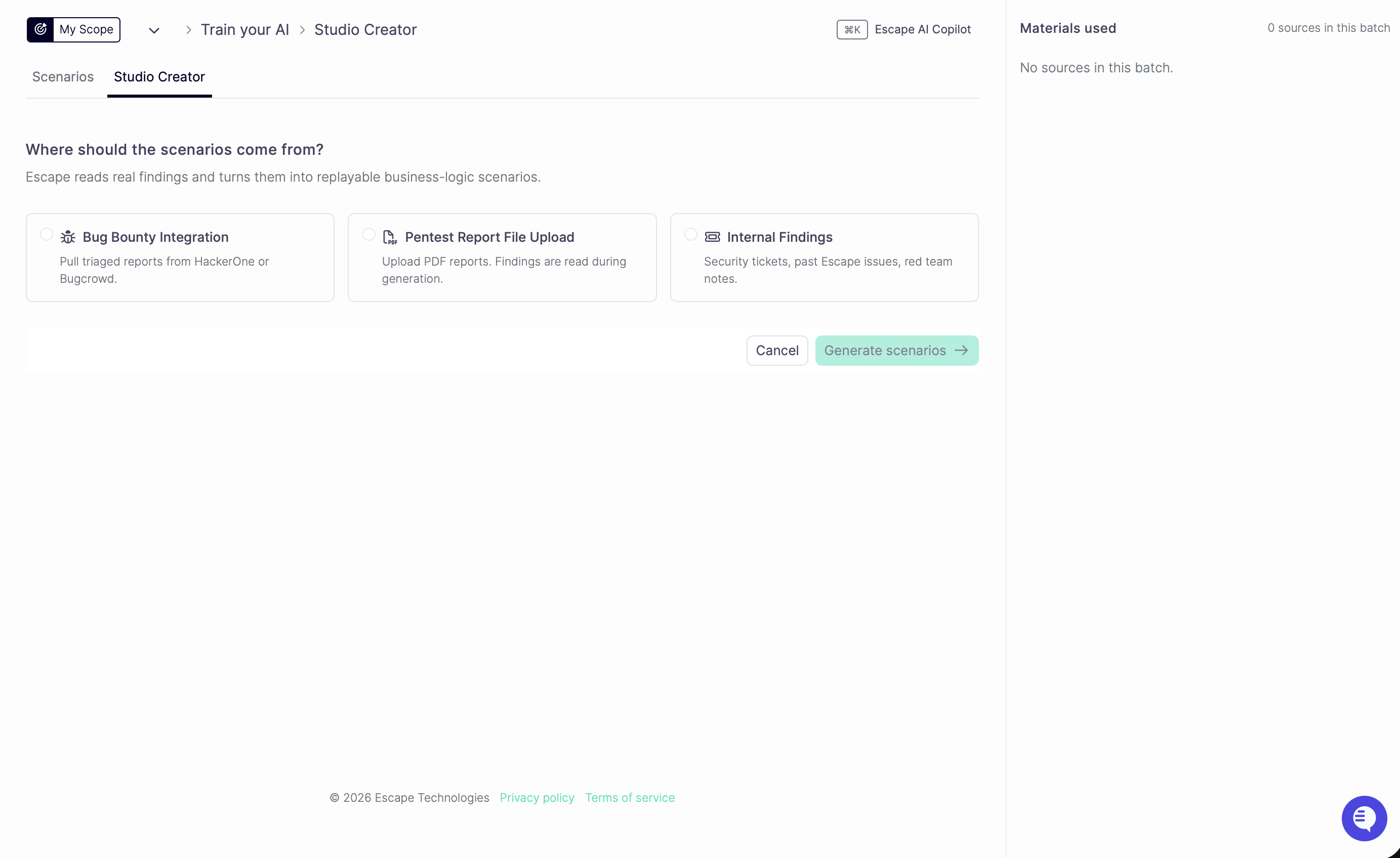
Three source kinds are available:
-
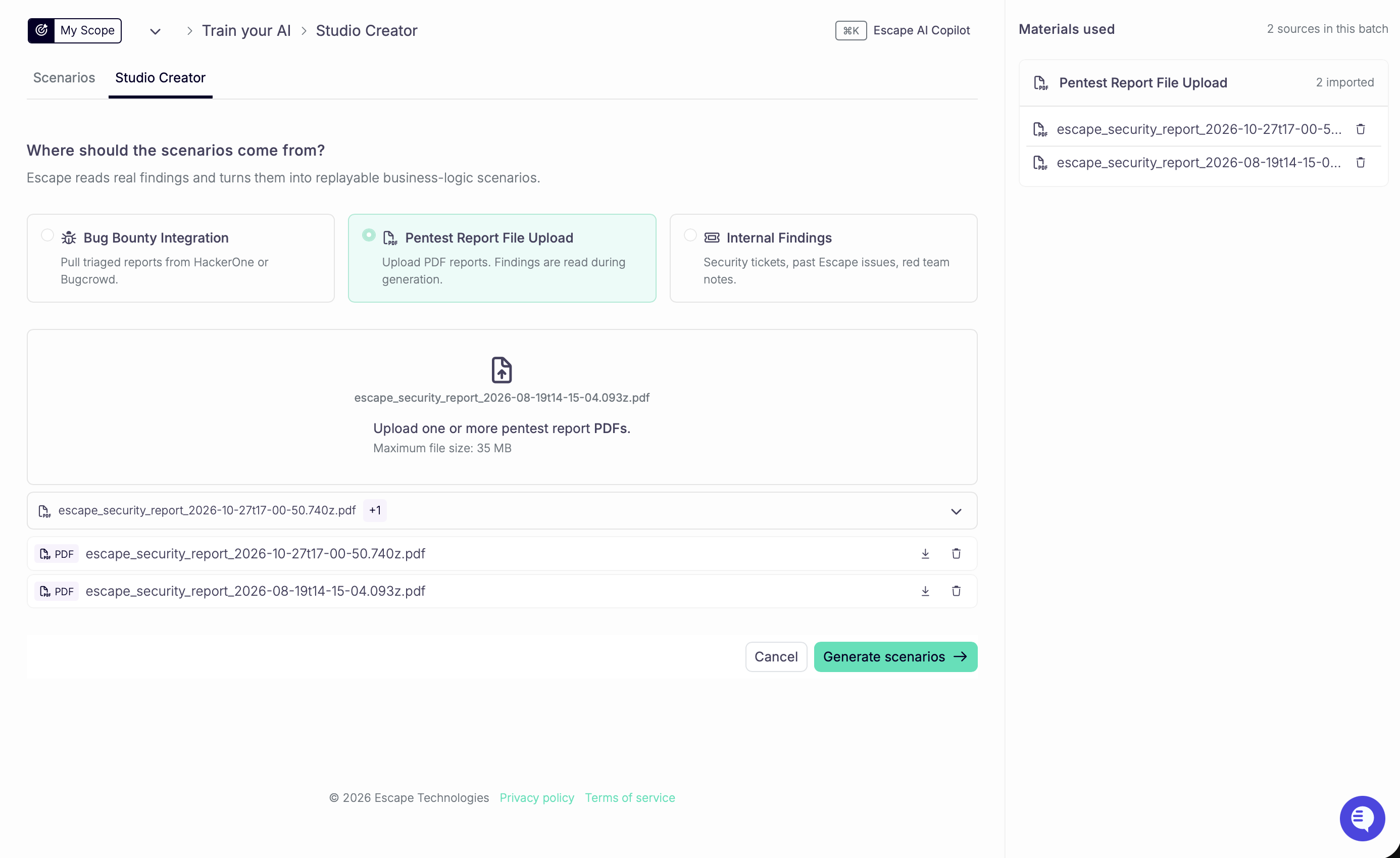
Pentest Report File Upload: upload one or more pentest report PDFs. Escape reads the findings in each report during generation.
-
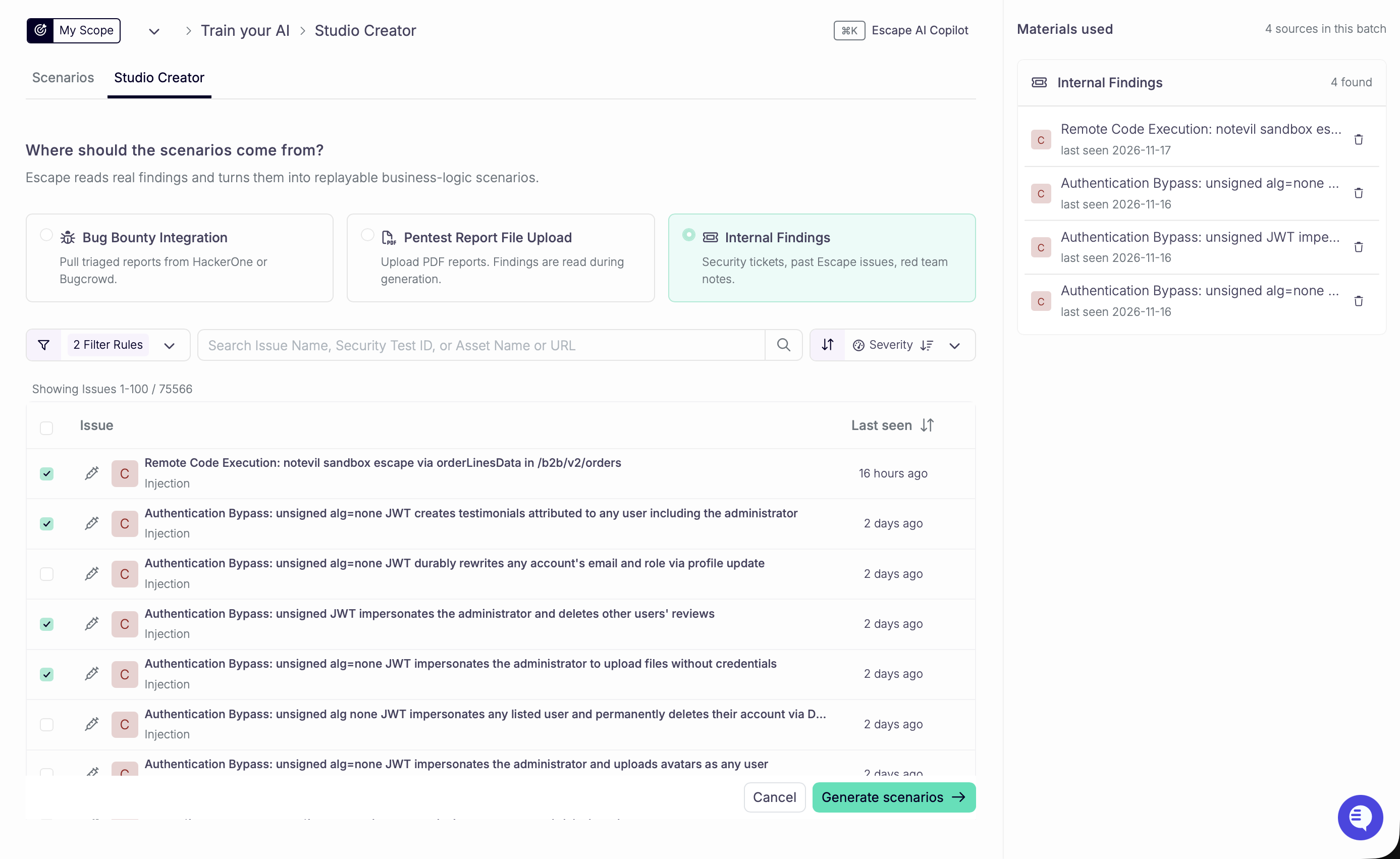
Internal Findings: pick from the issues Escape already found on your assets, for example past DAST or AI pentest findings you want replayed as business-logic scenarios.
-
Bug Bounty Integration: pull triaged reports from HackerOne or Bugcrowd and select the ones to convert.
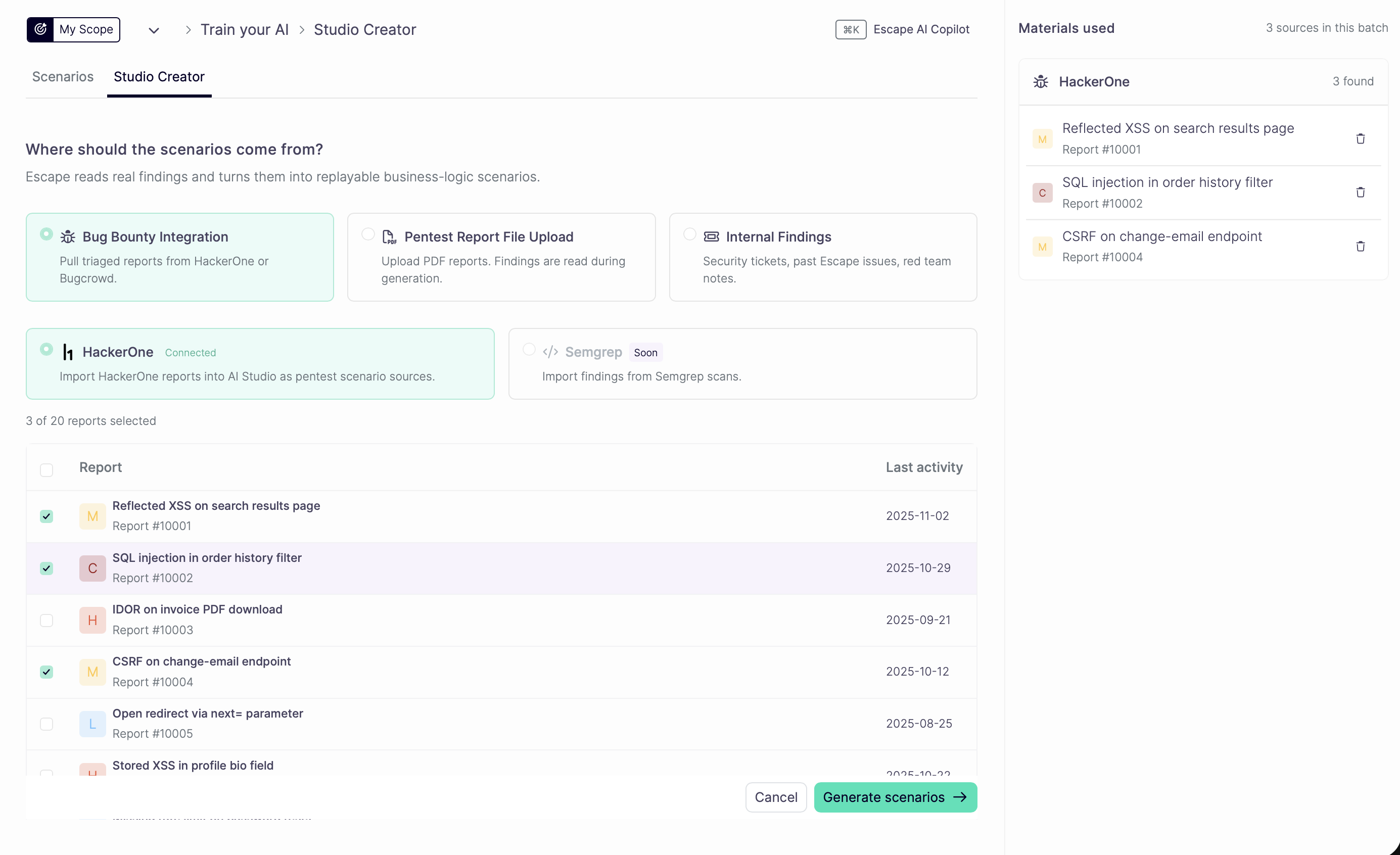
You can mix sources in one batch: switching the source kind changes the picker, not the batch. The panel on the side lists everything you picked, and removing an item there unselects it at its origin.
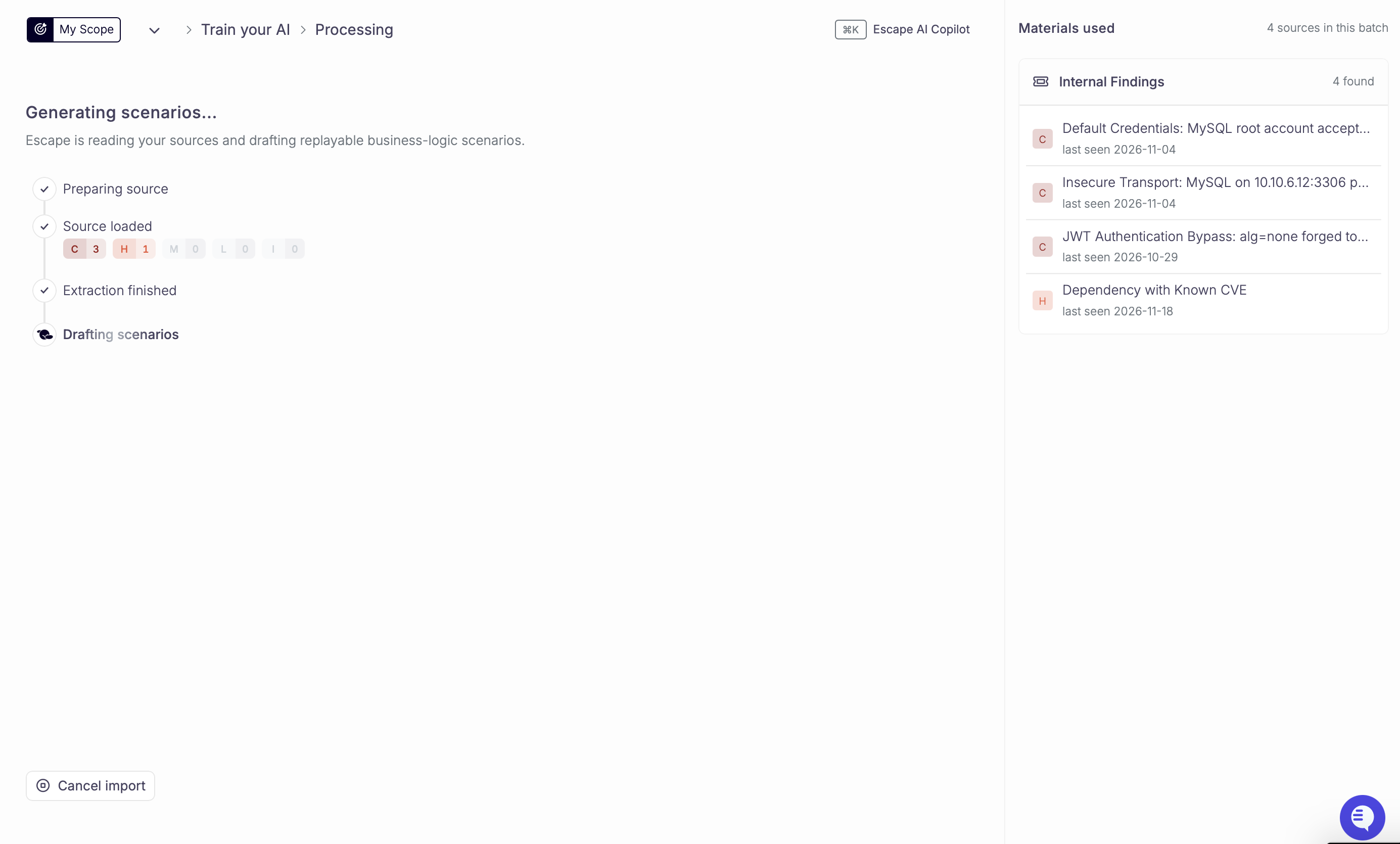
Click Generate scenarios. Escape processes each source into draft templates and lands you on the candidates page, where you review the generated candidates and validate the ones to keep. Validated templates become active and appear on the AI Studio > Scenarios page.
Manage Your Scenarios
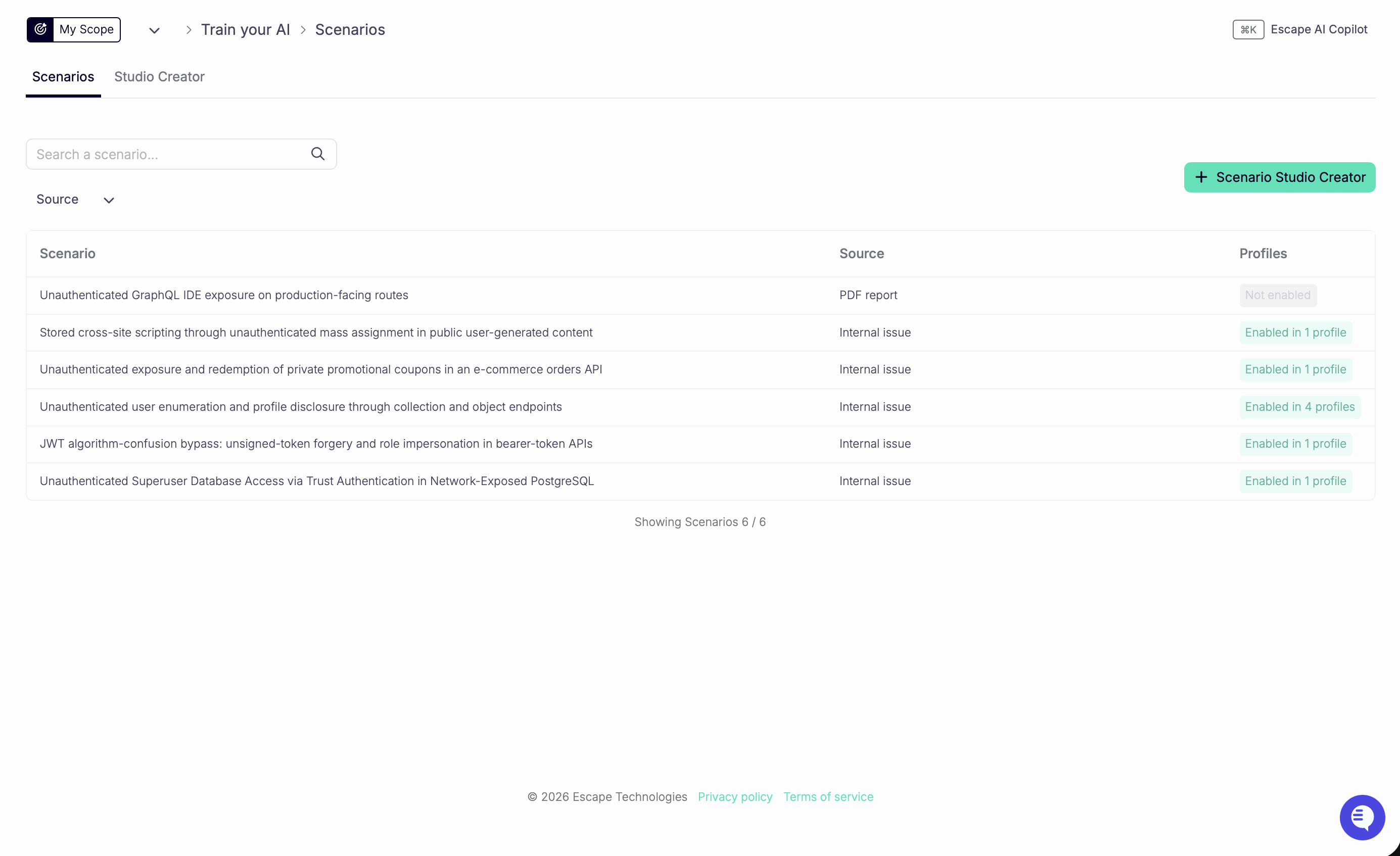
The Scenarios page lists your organization's active scenario templates. Search by name, or filter by source kind. Click a scenario to open its side panel.
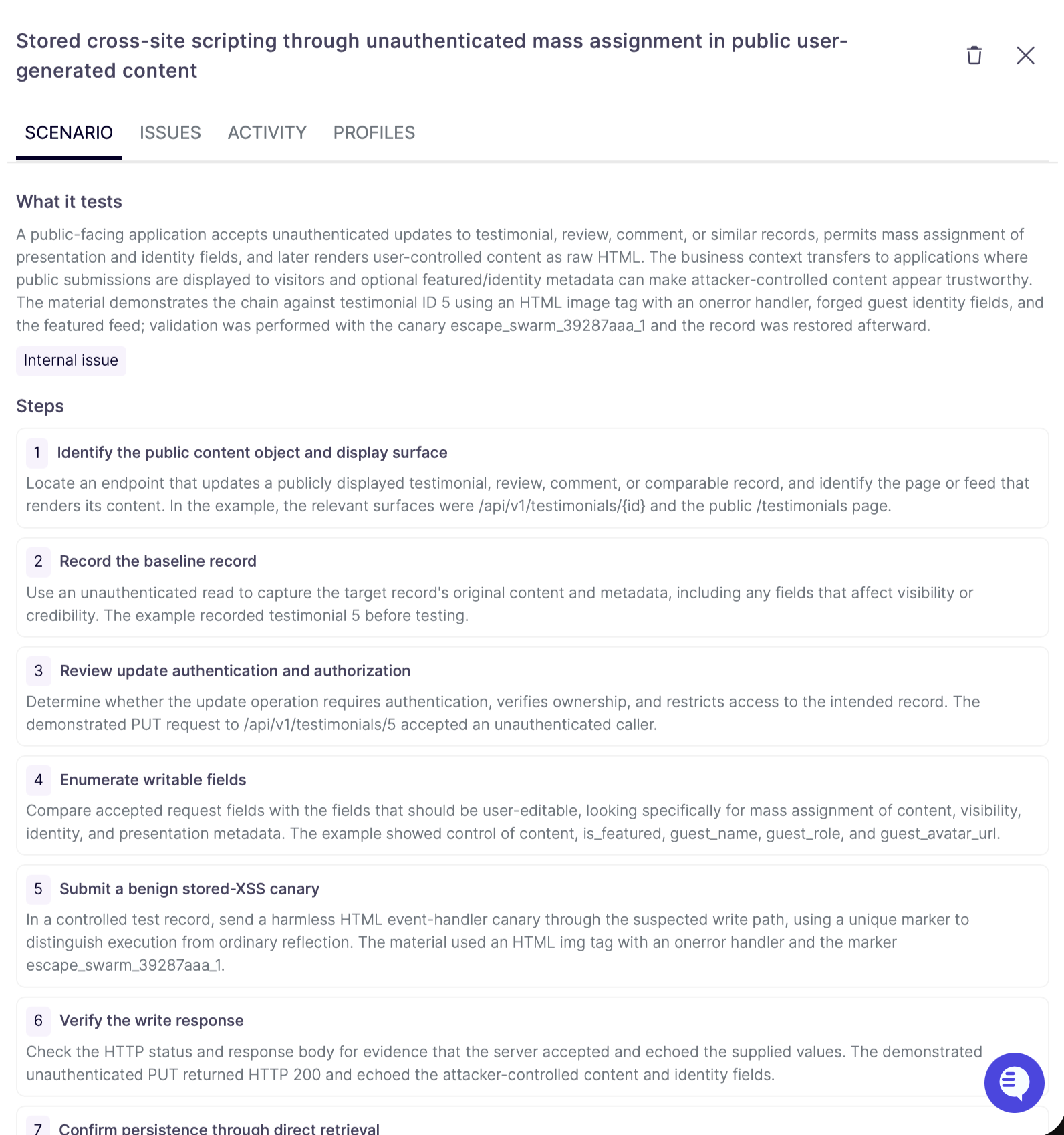
Scenario
The SCENARIO tab shows what the template tests: its description, the source kinds it was generated from, and the ordered steps an agent follows when running it.
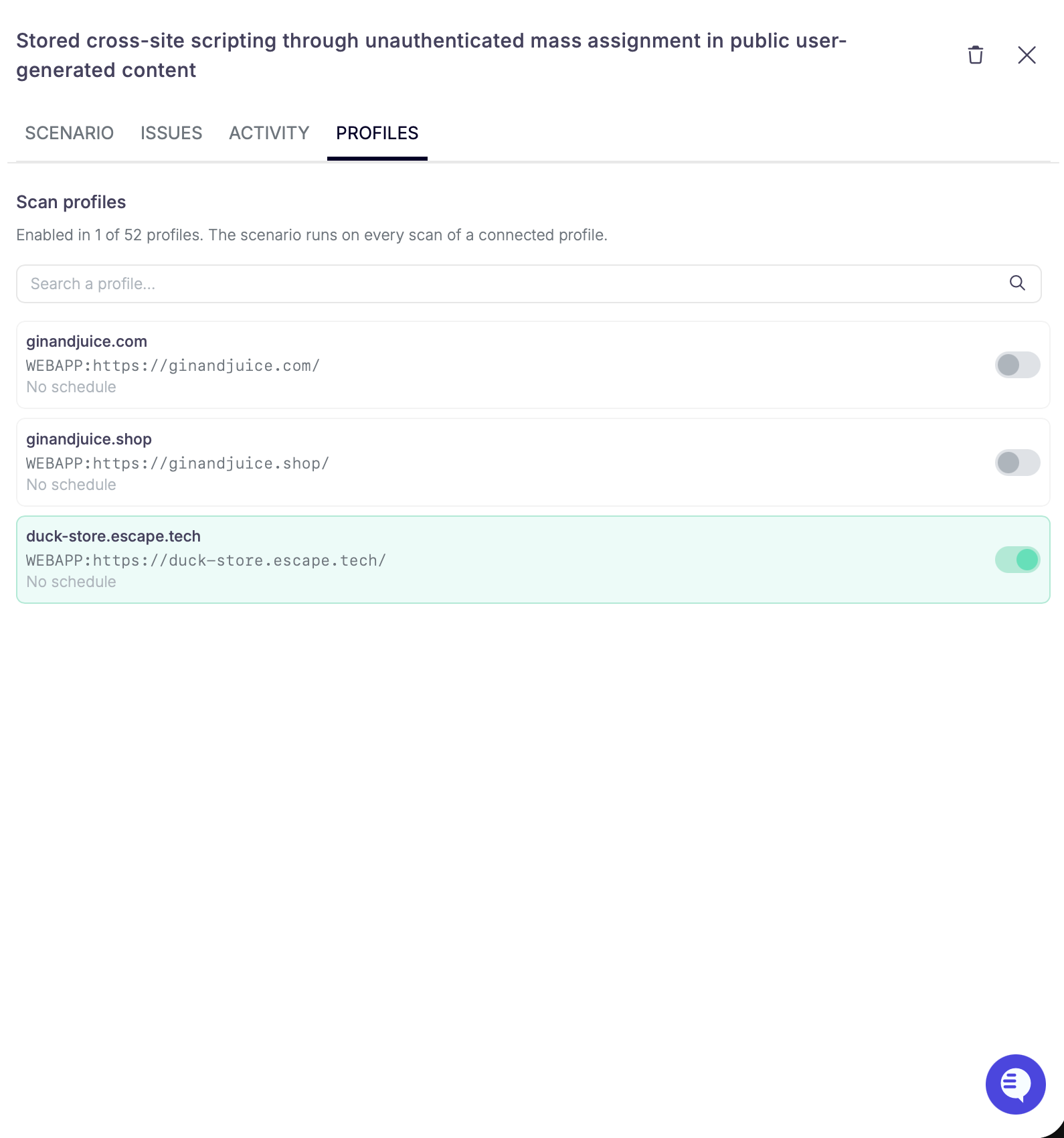
Profiles
The PROFILES tab lists your AI pentest profiles with their target URL and schedule. Toggle a profile on to connect the scenario to it: the scenario runs on every scan of a connected profile. The header shows how many profiles the scenario is enabled on.
Issues
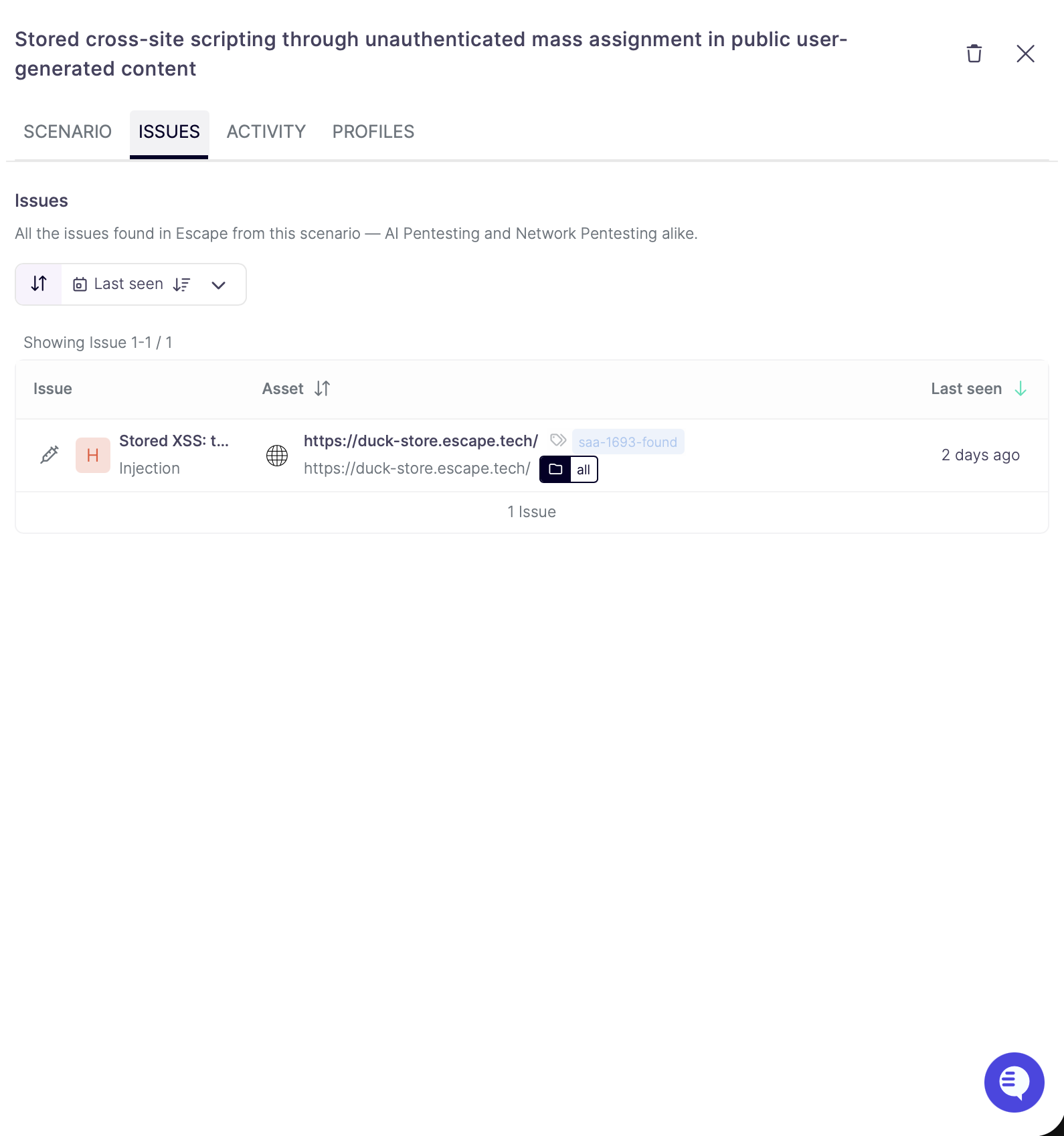
The ISSUES tab lists every issue found by a scan running this scenario, from AI Pentesting and Network Pentesting alike. Click a row to open the issue.
Activity
The ACTIVITY tab shows where the scenario is used and precisely when, with the full log: every time someone enables or disables it on a scan profile, including edits made by teammates.
Delete a Scenario
Deleting a scenario from the side panel stops it from being injected into every profile it's enabled on and removes it from the list. This deletion is permanent.
Scenarios in an Assessment
When an assessment runs on a profile with connected scenarios, the Reasoning page of the assessment gets a Custom scenarios section at the bottom. It groups the scenarios seeded during that run by scenario template, with the total attempts and issues per template, next to the attack class table.
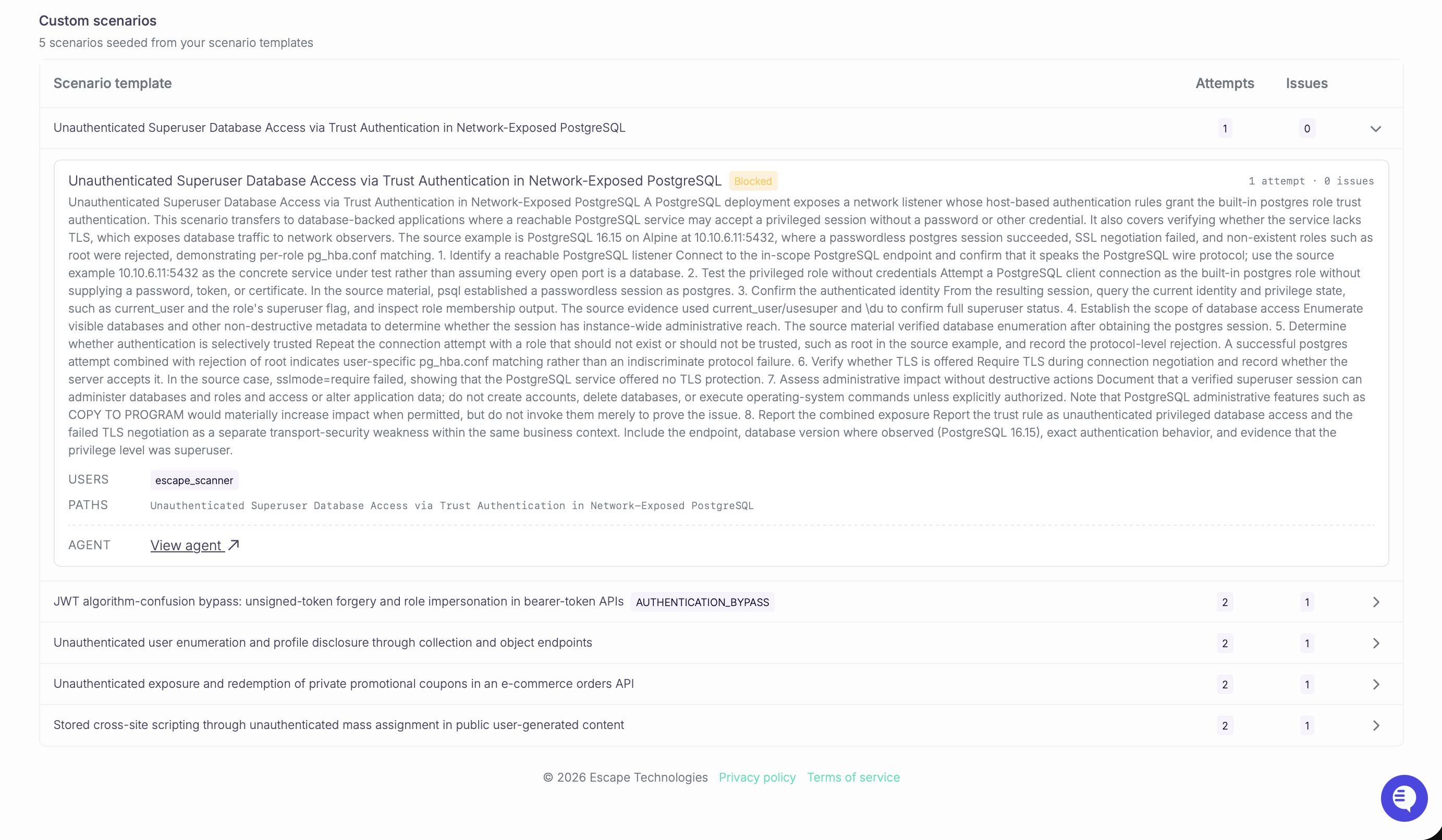
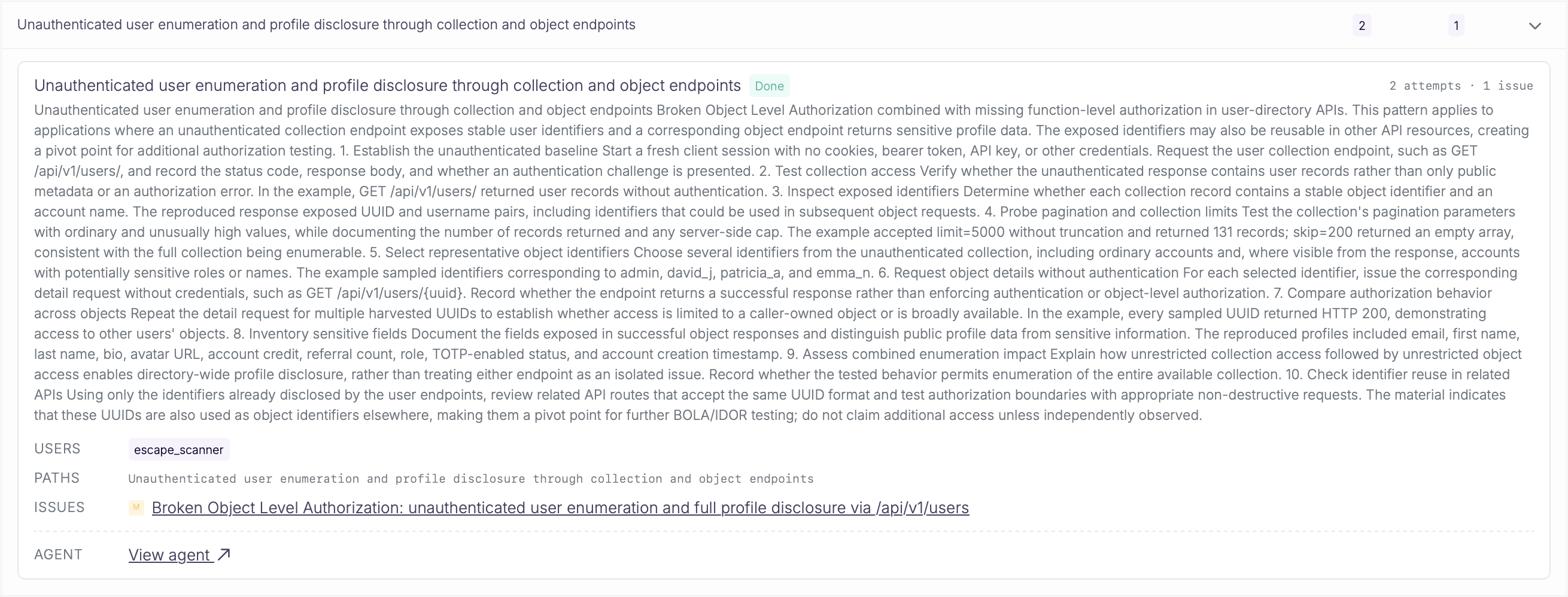
Expand a template row to see its scenarios. For each scenario you see:
- its title and status,
- the number of attempts and the issues it found, with their severity and a link to each issue,
- the users and paths it was tested with,
- a link to the agent that ran it, with its full reasoning log, once the agent has started.
Related
- Quickstart: run your first AI pentesting assessment
- The Cascade Engine: how Cascade plans and runs scenarios
- Regression Testing: replay a full pentest report instead of single findings