Continuous Pentesting
Continuous pentesting runs a scoped AI pentest on what each release changes: on every merge, after a deploy, or on a schedule. Each run reads the commits since the last run, tests the routes those changes reach, and replays every open issue against your live app. This page shows you how to set it up, what a run does, and what it doesn't cover yet.
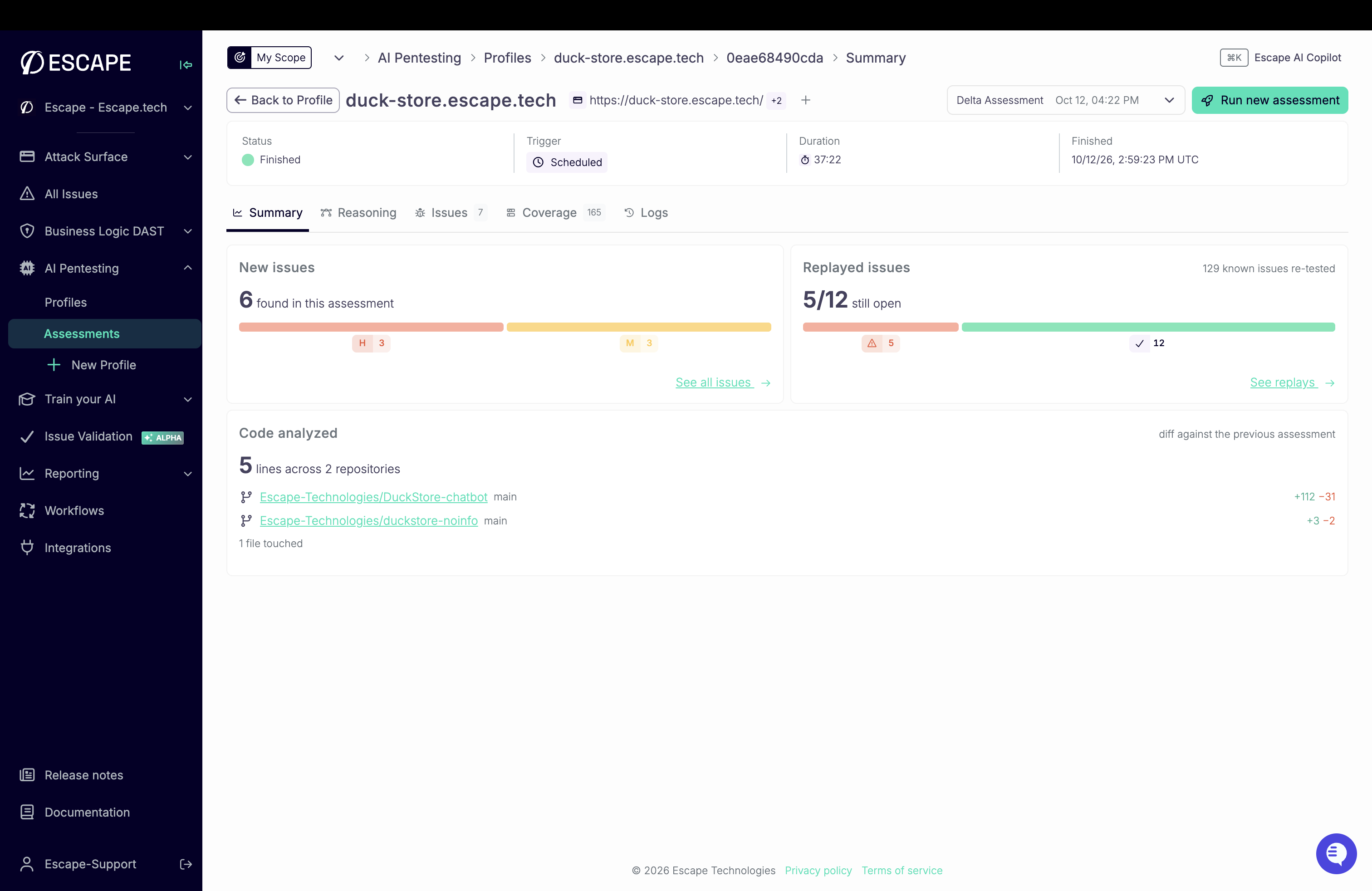 A Delta Assessment: new issues from the change, known issues replayed, and the code analyzed.
When to Use It
A full-scope AI pentest describes your app on the day it ran. Continuous pentesting keeps that picture current between full assessments, without rerunning a full pentest for every release.
| You need | Use |
|---|---|
| A deep assessment of the whole app, before an audit or a major release | A full-scope AI pentest |
| Pentest depth on each change, between full assessments | Continuous pentesting |
| Fast, known checks on every build, or testing without source code | DAST |
Continuous runs are white-box: they read your code from GitHub. If you can't share source code, use DAST.
Prerequisites
- An AI Pentesting profile on a web app, REST API, or GraphQL API. Mobile app profiles don't support continuous pentesting.
- The Escape GitHub App installed with access to the repositories behind the app. See the GitHub integration.
- Permission to edit the AI Pentesting profile.
- The deployed target and its credentials, configured as for your full-scope assessment. See Authentication.
Start from a full-scope assessment
Run a full-scope white-box assessment on the profile first. Continuous runs start from the latest one, so the agents already know your app before they test changes.
Set Up Continuous Pentesting
- Open your profile from AI Pentesting > Profiles.
- On the Continuous pentesting banner, click Set up continuous pentesting.
- Under Trigger, pick when runs start: On every merge, After a deploy, or On a schedule. See Triggers.
- Under Repositories, add the GitHub repositories behind the app and pick the branch to watch on each. The form preselects the default branch. We recommend watching 3 repositories at most per profile.
- Click Set up continuous pentesting.
The banner now shows Live with the trigger and the next run. To change the trigger or the repositories later, click Settings on the banner.
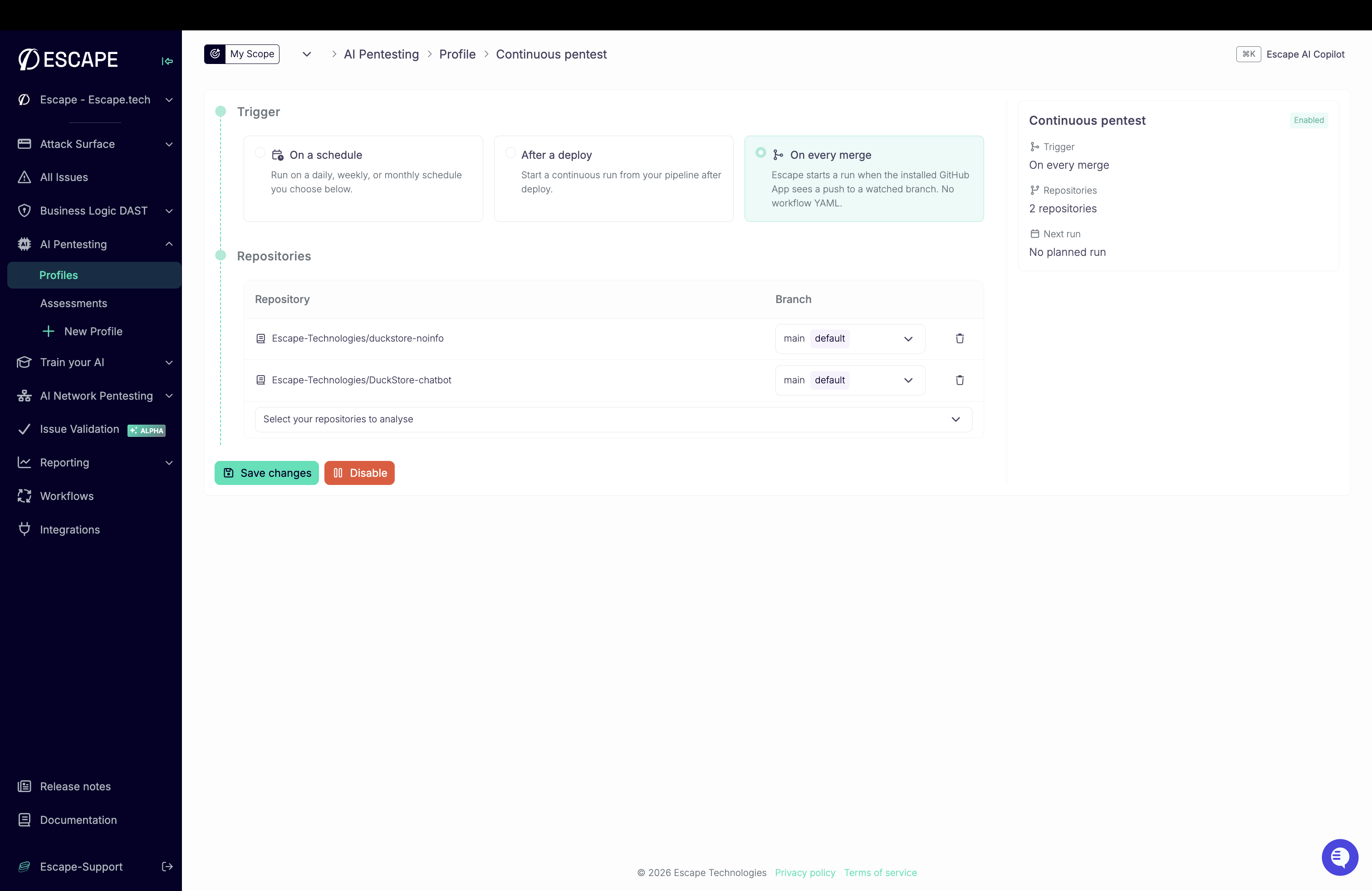
Before saving, Escape checks that it reads every repository on its branch. If one isn't visible to a GitHub App installation, or the branch doesn't exist, nothing is saved and the form tells you which repository failed.
Triggers
Each profile has one trigger.
On Every Merge
Escape starts a run when the installed GitHub App sees a push to a watched branch. There's no workflow to add to your repository. Branch deletions and tag pushes don't start a run.
When you watch several repositories, a merge to any of them starts a run, and that run covers the new commits on every watched repository, not only the one that was merged.
After a Deploy
Your pipeline starts a run once your deploy stage finishes. Place the step after the deploy: a run against a build that isn't deployed yet tests the old version of your app.
Store two secrets in your CI: ESCAPE_API_KEY (from your user settings) and ESCAPE_PROFILE_ID. For the CLI and Public API examples, expose both secrets as environment variables to the step. Then call Escape in one of these ways:
- name: Escape continuous pentest
  uses: Escape-Technologies/cli@v1.15.0
  with:
    profile_id: ${{ secrets.ESCAPE_PROFILE_ID }}
    api_key: ${{ secrets.ESCAPE_API_KEY }}
    continuous: 'true'
With continuous: 'true', the Action runs continuous-scans start instead of a full scan and passes GITHUB_SHA as the commit tag. configuration_override isn't supported for continuous runs.
Requires escape-cli 1.15.0 or later. Add --watch to block until the run ends, and --fail-on-severity (with --watch) to fail the job on new issues at or above a severity. See the CLI documentation.
curl -X POST https://public.escape.tech/v3/continuous-scans \
  -H "X-ESCAPE-API-KEY: $ESCAPE_API_KEY" \
  -H "Content-Type: application/json" \
  -d "{\"profileId\": \"$ESCAPE_PROFILE_ID\"}"
The response is the scan, and its id is the scan ID. Use this from GitLab CI, Bitbucket Pipelines, Jenkins, or any CI that sends an HTTP request.
When you watch more than one repository and want to pin the run to the commit you just deployed, pass that commit and its repository: --continuous-commit-hash and --repository-url on the CLI, or continuous.commitHash and continuous.repositoryUrl in the API body. Other watched repositories use their branch head.
Note
The continuous-scans API route and the CLI commands are tagged Beta. Continuous pentesting itself is generally available.
On a Schedule
Runs start on a daily, weekly, or monthly schedule. Daily is the most frequent cadence. Click Run now on the setup page to start an extra run right away.
What a Run Does
Each run follows the same steps:
- Reads what changed. It collects the commits on each watched branch since the last run.
- Analyzes the changed code. Static analysis runs on the change and reports only the issues the change introduced.
- Maps the change to routes. A change to shared code, such as a middleware or an auth helper, opens risk on routes whose own code never moved. The run maps the change to every route it reaches, up to 20 routes per run.
- Attacks those routes. Cascade agents test the routes against your deployed app. When a route fronts a chatbot, an AI agent, or an MCP server, the run applies AI red teaming techniques.
- Replays every open issue. In parallel, the run replays each open issue on the profile against the deployed app.
A run is capped at 60 minutes, and never runs longer than the profile's maximum duration. See Guardrails.
Where Each Run Starts
Continuous runs start from the latest full-scope assessment on the profile. When you turn continuous pentesting on, or turn it back on after a pause, each repository starts from its current commit.
One Run at a Time
A merge or a schedule that fires while a run is in progress doesn't start a second run. The next run covers every commit since the last one.
How Issues Change
- New issues from the change are filed like any other AI Pentesting issue, with their Proof of Exploit.
- Known issues come back as replays, not as duplicates.
- An open issue moves to Resolved only when its replay verifies the fix. No retest request needed.
- A status you set yourself (ignored, false positive, manual review) never changes. A resolved issue isn't reopened by a replay.
Status changes trigger your workflows the same way as any other assessment.
Read the Delta Assessment
Each run produces a Delta Assessment, listed in the profile's assessment history. Its summary has three cards:
| Card | What it shows |
|---|---|
| New issues | Issues the change introduced, by severity. |
| Code analyzed | The diff against the previous assessment: lines and files changed, per repository and branch. |
| Replayed issues | Known issues re-tested on this run, and the outcome of each replay. |
The Reasoning tab shows the agents' reasoning and each replay, so you see what the run tested and why.
Pause Continuous Pentesting
On the setup page, click Disable to pause continuous pentesting. A run in progress finishes. Your repositories and settings are kept.
Click Enable to turn it back on. Each repository restarts from its current commit, so commits made while it was paused aren't tested. Run a full-scope assessment after a long pause.
To manage the setup from a terminal, use escape-cli profiles continuous-pentest with create, update, enable, or disable.
Limits
- White-box only. Continuous runs need your source code. Without it, use DAST.
- GitHub only. Runs read code from GitHub repositories. Any CI triggers a run through the API, but the code must be on GitHub.
FAQ
Does it replace my full-scope pentest? No. Start from a full-scope assessment and run one again after big changes or a long pause. Continuous runs keep it current in between.
Does it replace DAST? No. DAST runs fast, known checks on every build, without source code. Continuous pentesting goes deeper on the apps where business logic matters, each time their code changes.
Will it flood my team with findings? No. Known issues come back as replays, not new findings, and a run reports what the change introduced.
Does it slow down my pipeline?
No. Runs happen on Escape's side. The merge trigger needs no pipeline step, and the deploy trigger is one API call your build doesn't wait on unless you add --watch.