Quickstart
This guide takes you from an empty profile to your first AI Network Pentesting assessment. By the end you'll have a scope in place, a validated configuration, and an assessment running against your network.
Prerequisites
Your firewall rules. If a firewall or IPS sits in front of your targets, decide whether to allowlist Escape's public IP addresses. Allowlisted traffic shows what an attacker gets past your filters; blocked traffic shows what your filters stop.
Create a Profile
Go to AI Network Pentesting > New Profile. The form has four steps.
1. Scope
Enter one target per line: an IPv4 address, an IPv4 CIDR range, an IPv6 address, or a domain. To import a list, drop a CSV file on the field or click Import CSV.
The form shows what it parsed: the IP ranges, the Domains and addresses, the total number of IPv4 addresses, and any invalid lines. The first domain or single address becomes the profile's main host, and the profile name is generated from it.
A scope needs at least one domain or single address. See Scope for every rule and limit.
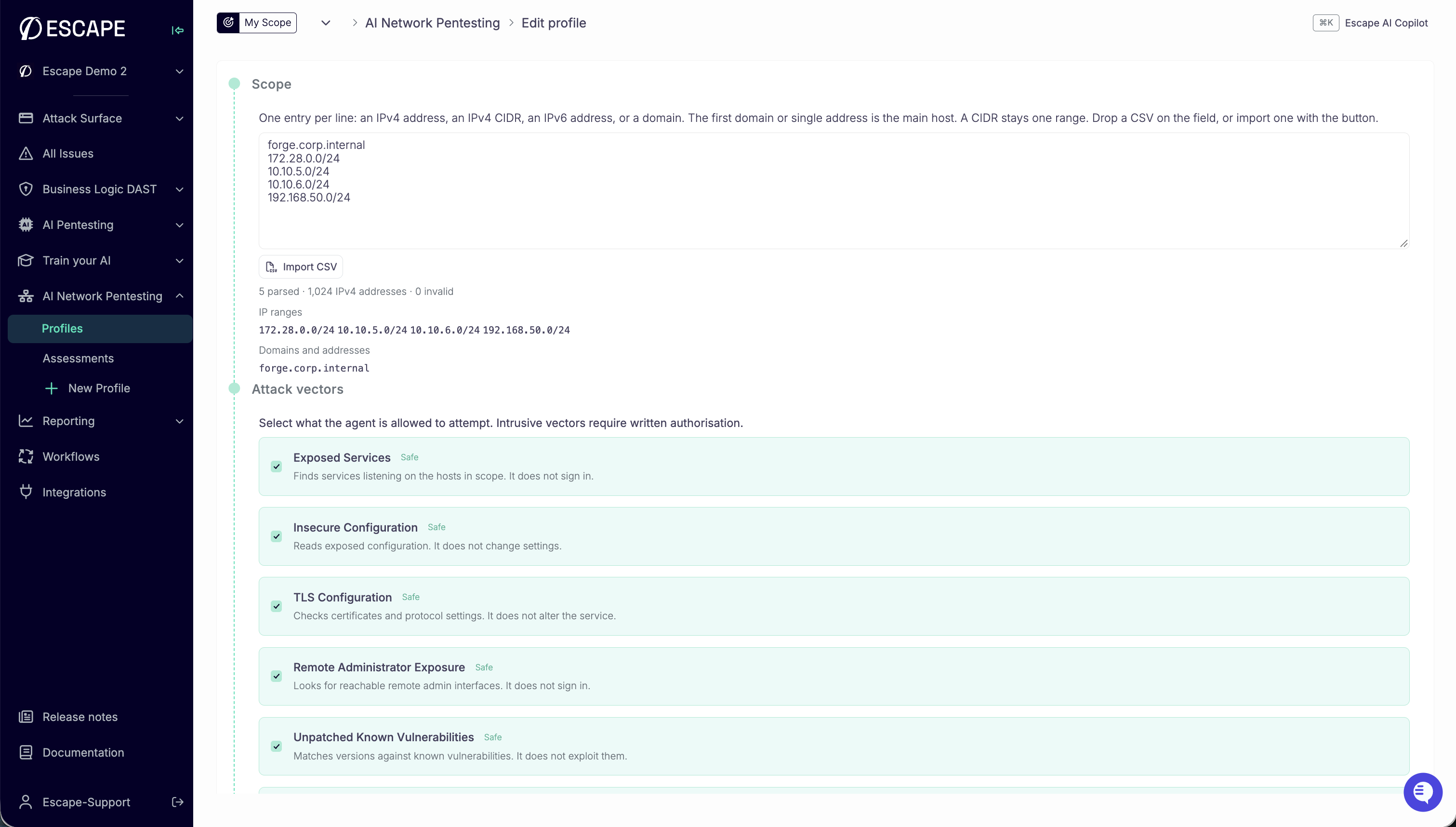 The Scope step parses each line into IP ranges and domains or addresses, then the Attack vectors step lists what agents may attempt.
2. Attack Vectors
Select what the agents are allowed to attempt. You need at least one vector.
- Safe vectors only observe: they list services, read configuration, and check TLS, without signing in.
- Intrusive vectors try credentials, send injection payloads, exploit known CVEs, or send repeated requests. They can lock accounts or disturb services, so select them only with written authorization.
3. Fine-Tune (Optional)
- Context: describe the scope in What is this scope? (for example, "Corporate edge and VPN"), and list what matters most. Agents use this to prioritize. It narrows their focus, it never widens the scope.
- Location: where traffic comes from. Pick the Europe, United States, or Canada region, or one of your private locations.
- Duration: the rate limit and the maximum duration. See Guardrails.
- Schedule: start now, or pick a later start time.
4. Review & Launch
- Click Validate Configuration. The check runs from the selected location and doesn't start the pentest.
- Fix any target the check flags, then validate again.
- Click Create & run assessment, review the summary in the confirmation dialog, and confirm.
Create & run assessment stays disabled until validation passes. To keep the profile without running it, click Save profile.
Follow the Assessment
Open AI Network Pentesting > Assessments and select your run.
- Reasoning shows the agents live: what they're testing, the tools they call, and what they find.
- Issues fills up as findings are reproduced.
- Assets lists the hosts and services the assessment saw.
To stop the run, cancel it from the assessment page. See Results for how to read each tab.
Next Steps
- Tune the Guardrails before you test fragile or production systems.
- Run an AI Pentesting assessment on the web apps and APIs your network assessment exposed.