Escape for Claude
Connect Escape to Claude Desktop, Claude.ai, and Claude Code through OAuth 2.1 without copying an API key. Once connected, you can use plain-English prompts to explore ASM assets, run AI pentests, triage findings, and prepare remediation guidance. Access follows your Escape user permissions.
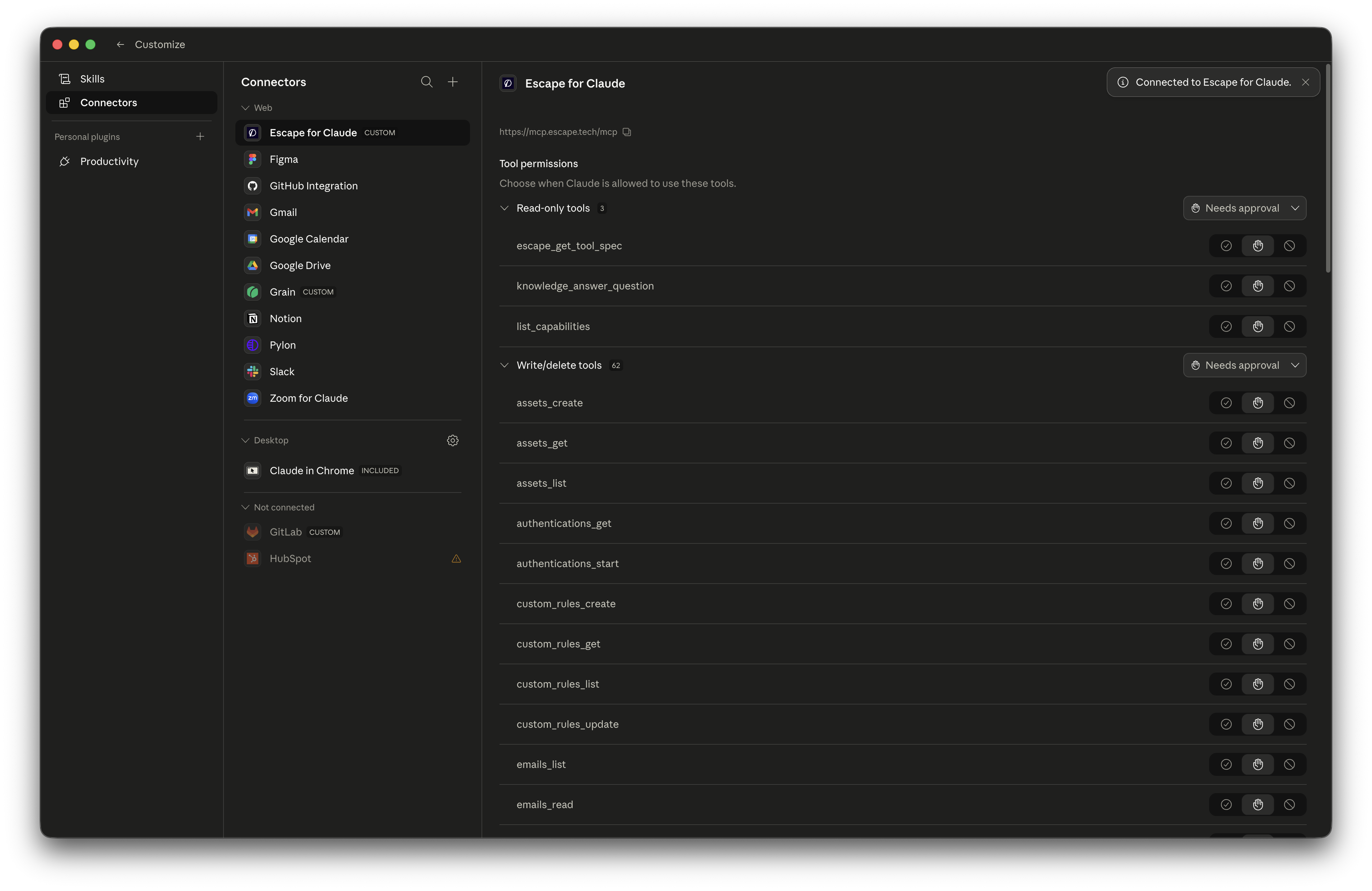
The same setup works for any MCP-compliant assistant. See Other MCP clients below for Cursor, ChatGPT desktop, Continue.dev, Zed, Windsurf, and Codeium.
Why Escape for Claude
AppSec teams are already living inside their AI assistants. Pulling Escape findings into Claude lets you:
- Ask security questions in your team's own language ("show me unauthenticated endpoints exposed this week" instead of clicking through filter dropdowns).
- Update specific issues' statuses after reviewing their evidence.
- Hand developers a clean remediation in seconds (Claude reads Escape's evidence and reproduction payload, drafts the fix description, and tells you why it's a risk).
- Generate custom reports on demand without writing a public API script.
OAuth 2.1 lets you connect without copying an API key. The assistant caches your API key as its bearer token. The token response advertises a one-year lifetime; rotating or revoking the key invalidates cached tokens across your assistants on the next call. Treat the cached token like an API key.
Setup in Claude
The whole flow is five clicks. You'll need an Escape account; OAuth grants Claude access using the same API key your CLI uses, without requiring you to copy or paste it.
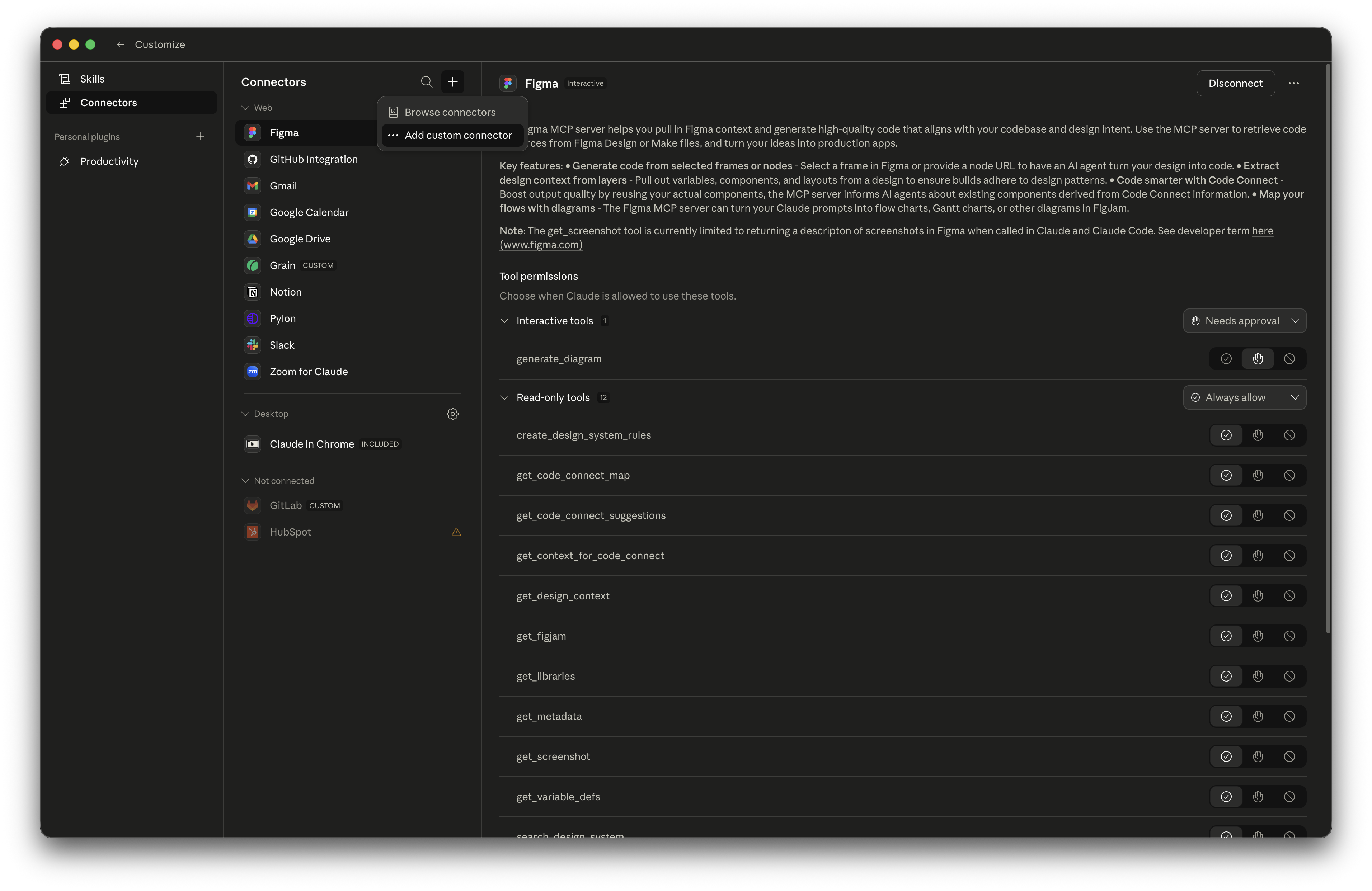
Step 1: Open the Connectors Panel
In Claude Desktop or Claude.ai, open Settings → Customize → Connectors, click the + at the top of the connector list, and pick Add custom connector.
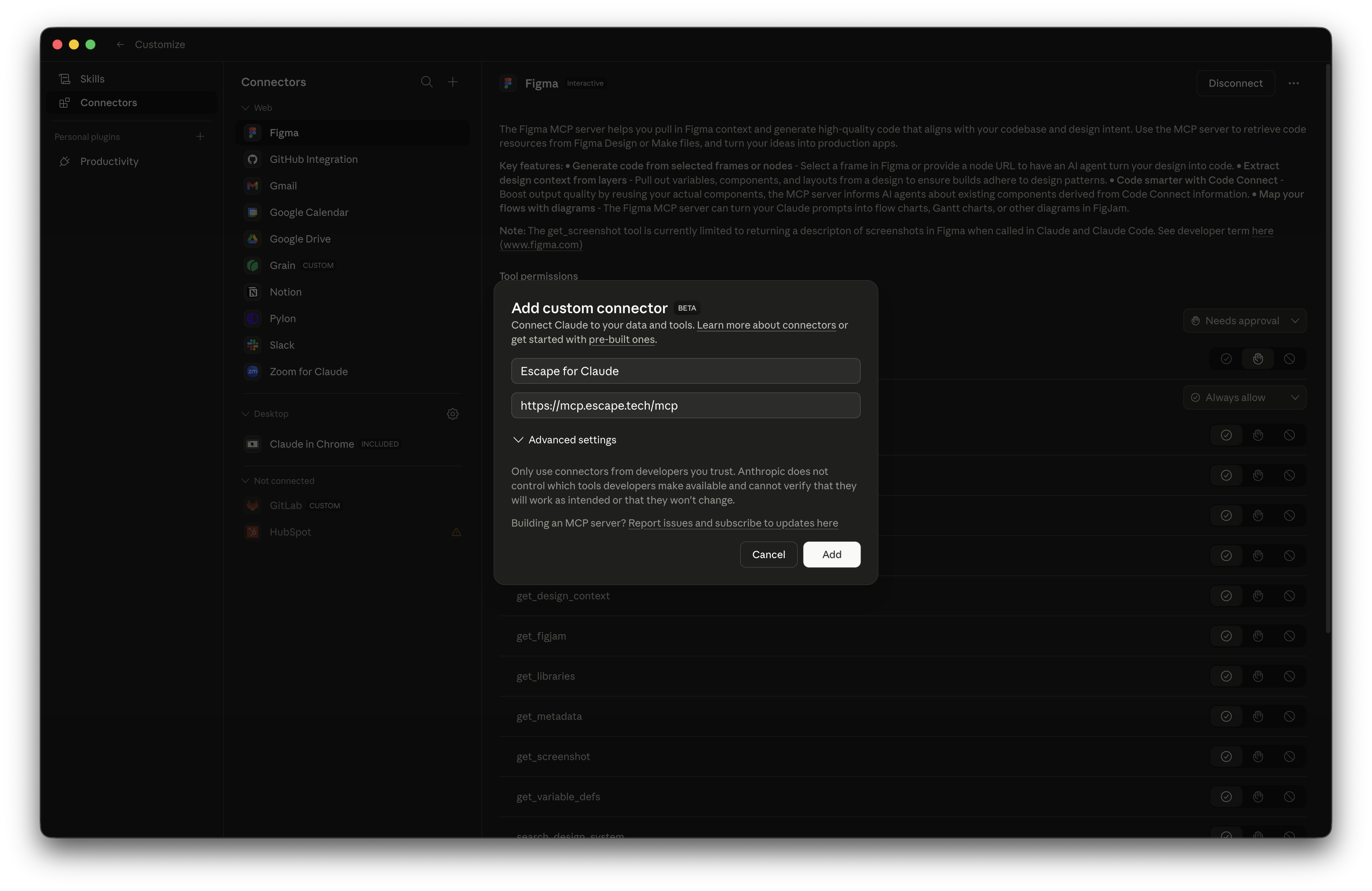
Step 2: Add the Escape MCP URL
Fill in the dialog and click Add:
- Name:
Escape for Claude(or anything you like; this is the local label). - URL:
https://mcp.escape.tech/mcp - Leave Advanced settings untouched.
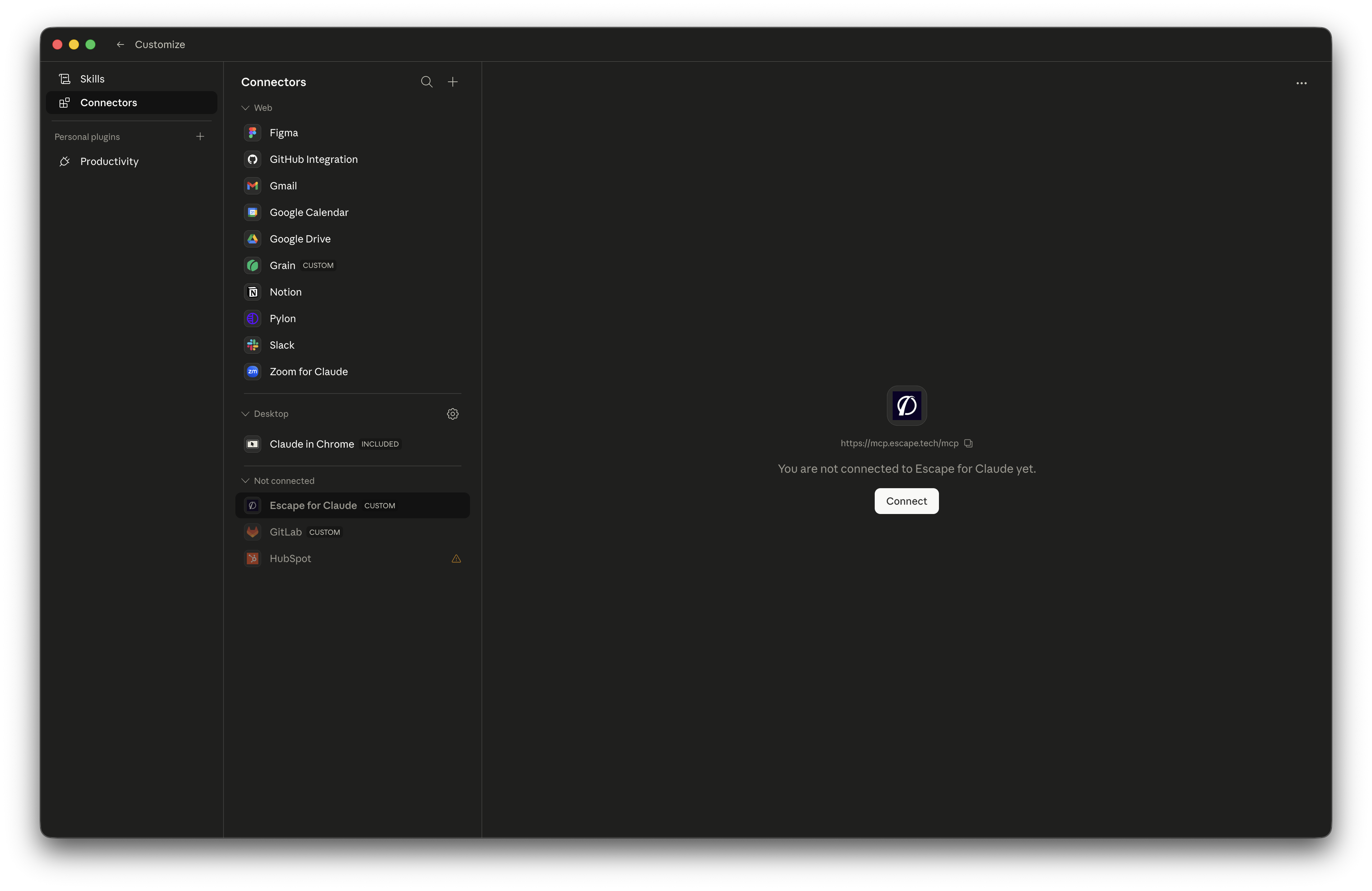
Step 3: Click Connect
The connector now appears under Not connected with a Connect button. Click it to start the OAuth handshake.
Step 4: Approve in Your Browser
Claude opens your browser to https://app.escape.tech/oauth/mcp/authorize. If you're already logged into the Escape dashboard the consent card appears immediately; otherwise sign in first.
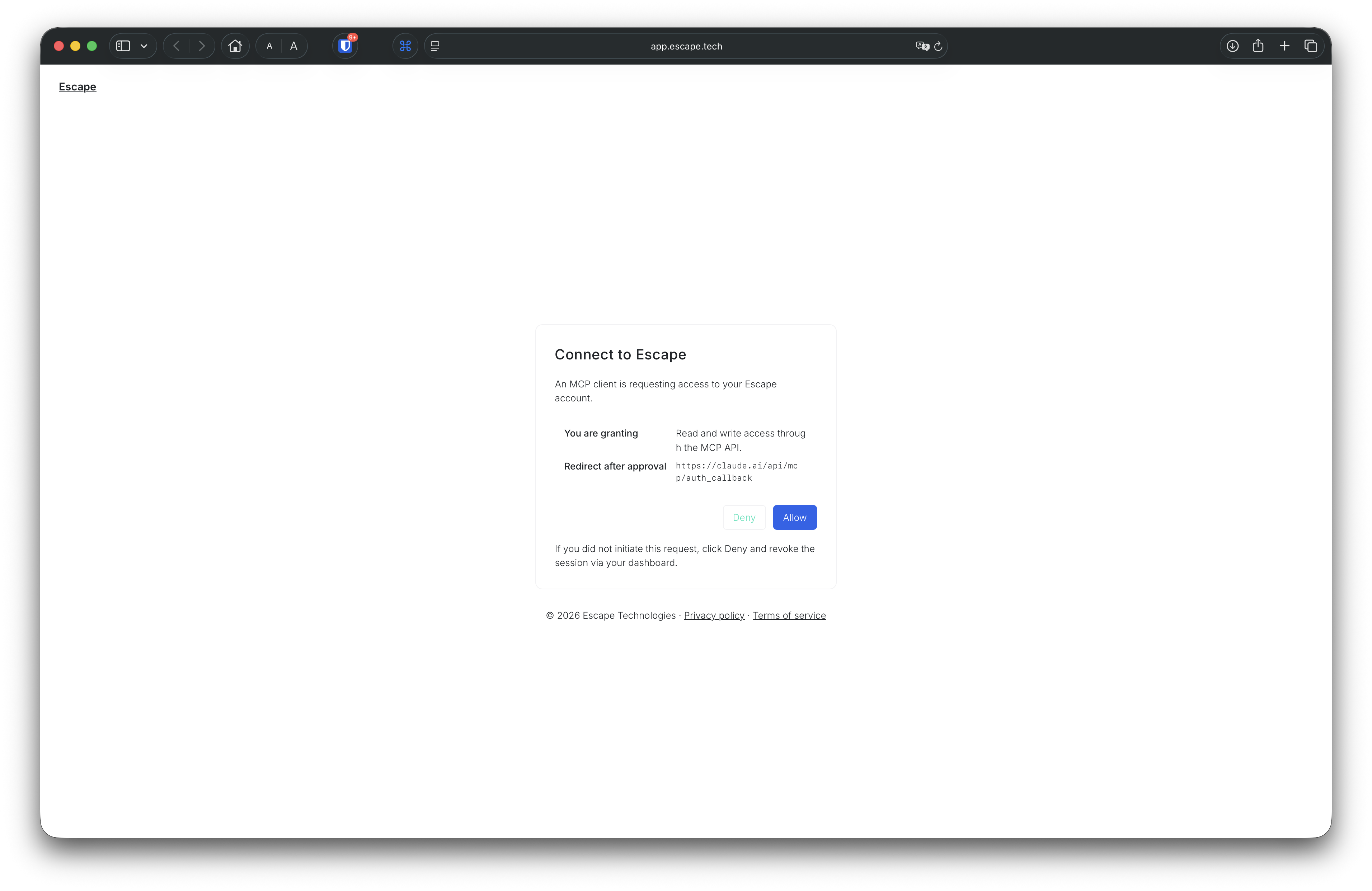
Click Allow and you'll see this confirmation:
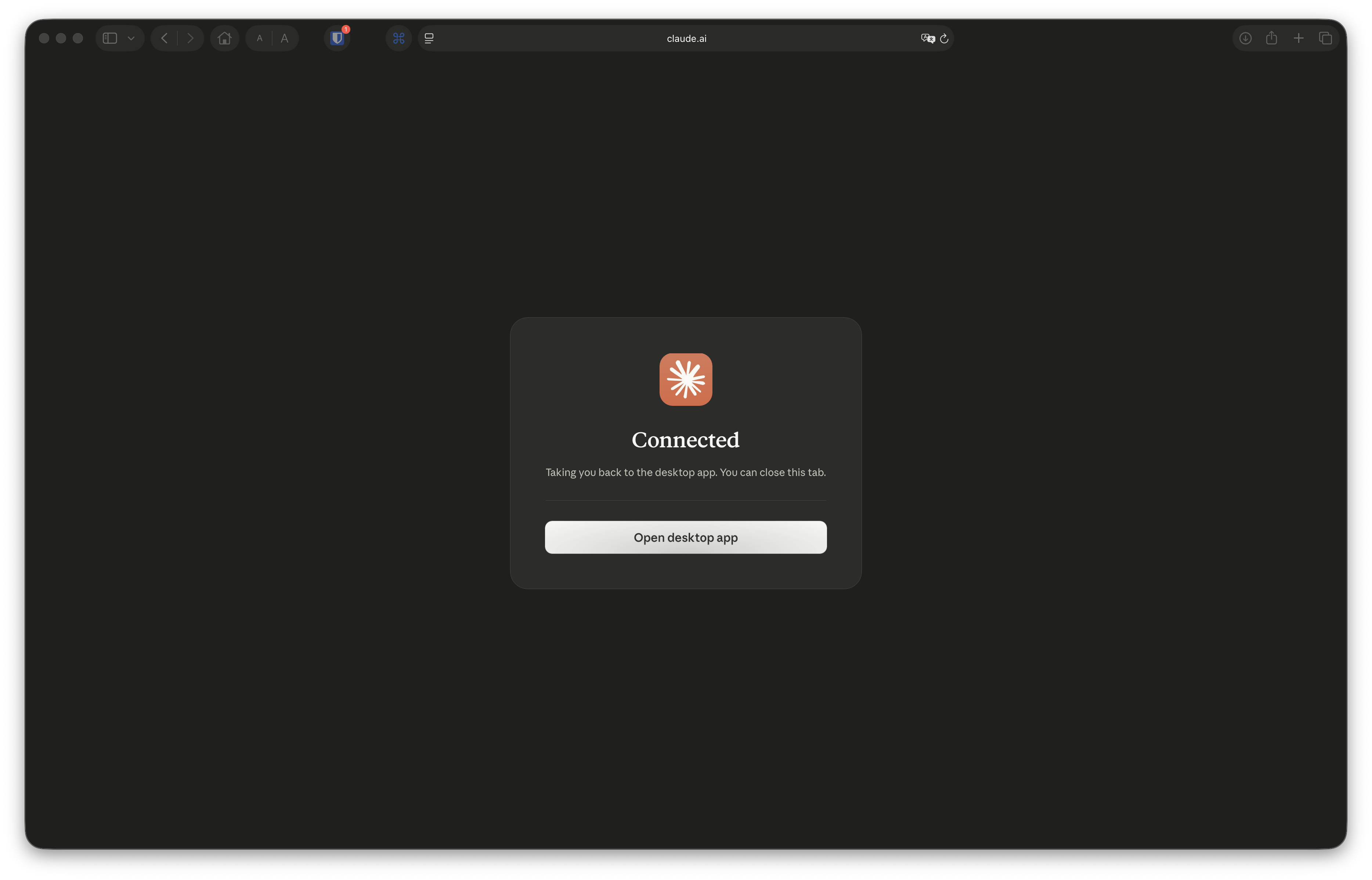
Step 5: Tune the Per-Tool Permissions
Back in Claude, the connector flips to Connected and the full Escape tool catalog appears. Use the per-tool toggles on the right to set permissions:
- Always allow for read-only tools (asset listing, knowledge questions, capability discovery).
- Needs approval for write/delete tools (creating scan profiles, updating issues, starting pentests).
Claude defaults to safe values, but you can tighten or loosen as needed.
Use Cases
The whole point of MCP is that Claude figures out which tool to call. A few prompts that work today, mapped to the AppSec workflow:
- Crown-jewel discovery (ASM): "Show me every external asset Escape discovered this week that's unauthenticated and exposed on the internet. Group by hostname."
- Conversational triage: "Pull the highest-severity issues from the last DAST scan on
api.example.com. Group by category and help me review individual issues before updating their status." - AI Pentest Assessment: "Start an AI Pentest on
api.example.comwith our authentication preset. When it's done, summarize the business-logic findings and rank them by exploitability." - Remediation handoff: "For issue
<id>, draft a fix description aimed at the developer who owns the endpoint. Include the reproduction payload and explain why it's a risk." - Custom report generation: "Generate a PDF report for all SSRF findings on this API surface from this quarter."
- CI/CD scan configuration: "Draft a YAML scan profile for our staging GraphQL endpoint with auth, then explain what each parameter does."
- Knowledge Q&A: "What's the difference between Escape's BOLA detection and a generic IDOR check?"
These are seeds. Claude chooses the tool chain, you read the result, and you keep refining in plain English.
Tell us what you build
Share your workflows and feature requests on your dedicated support channel or at support@escape.tech to help shape MCP improvements.
Other MCP Clients
The same https://mcp.escape.tech/mcp URL works for every MCP-compliant assistant, including ones behind your own MCP gateway or proxy:
| Client | Setup |
|---|---|
| Cursor | ~/.cursor/mcp.json with the URL only; OAuth on first use. |
| ChatGPT Desktop / Codex | Add as a custom MCP server with the URL only; OAuth on first use. |
| Continue.dev | Add to your Continue config with the URL only; OAuth on first use. |
| Zed | Configure as an MCP server with the URL only; OAuth on first use. |
| Windsurf / Codeium | Add via the MCP settings panel with the URL only; OAuth on first use. |
For headless contexts (CI scripts, custom integrations, your own MCP client), keep using Authorization: Key <api-key> or X-ESCAPE-API-KEY: <api-key>. Both flows use your Escape user permissions.
Full setup details for each client live in the IDE Integration Guide.
Troubleshooting
The Connect Button Never Appears
Claude has cached an OAuth bearer token from a previous session. To force a fresh handshake:
- Click the
…menu on the connector row and pick Disconnect. - Click Connect again.
As a server-side reset, rotating your API key from the Escape dashboard invalidates every cached token (across every assistant) on the next call.
redirect_uri is not allowed During the OAuth Handshake
Callback hosts don't need to be registered with Escape, so this points at the shape of the URI rather than the host. Cleartext http:// is only accepted on loopback (127.0.0.1, localhost, [::1]); every other callback must be https:// or a native custom URI scheme such as cursor://. If your client sends something else, contact support.
Claude Shows Tools but Tool Calls Fail with 401
Your underlying API key was rotated or revoked. Disconnect and reconnect the connector to redo the OAuth handshake against your new key.
I Don't Want to Use OAuth
The legacy header form keeps working. Configure the connector with:
Or, equivalently:
See IDE Integration Guide → static API key flow for full configuration examples.
Related Documentation
- Escape MCP server overview
- IDE Integration Guide
- Escape Copilot
- Model Context Protocol Specification
- MCP 2025-06-18 Authorization Spec
Questions?
Have a question? Reach out on your dedicated support channel (Slack, Microsoft Teams, or whichever channel we've set up with your team), or email us at support@escape.tech.