AI Pentesting Quickstart
How AI Pentesting Differs from DAST
AI Pentesting runs on Cascade, Escape's multi-agent pentest engine. It uses adaptive AI agents that reason about application behavior and adapt their testing strategies in real time. DAST uses rule-based systematic testing with predictable coverage patterns.
Use AI Pentesting when you need:
- Deep, adaptive testing that reasons about application behavior
- Complex vulnerability discovery requiring multi-step attacks
- Authorization testing with context understanding
- Business logic flaw detection
Use DAST when you need:
- Systematic, repeatable rule-based testing
- Fast CI/CD integration
- Comprehensive coverage of known vulnerability patterns
- Custom rule enforcement
AI Pentesting explores your application, reasons about context, and attempts multi-step attack scenarios such as authorization bypass and business logic abuse.
This guide walks you through prerequisites, your first assessment, and how to interpret results. You can also create profiles with escape-cli profiles create-ai-pentest or POST /v3/profiles/ai-pentest. See CLI Profiles and the Public API.
Prerequisites
Before running your first AI Pentesting assessment, prepare:
- An Escape account: Sign up at app.escape.tech
- Access to AI Pentesting enabled for your organization
- A reachable HTTP or HTTPS target URL for the application or API you want to test
- Authentication credentials (if required)
If AI Pentesting isn't enabled for your organization, the creation form shows a paid-feature message. Contact your Escape representative to enable it.
Safety & Production Usage
AI Pentesting is designed to run safely against production environments.
Agents are instructed to avoid destructive payloads and actions, and to limit proof-of-concept impact to validation. Keep the default scope restrictions unless you've reviewed the affected operations. Configure rate limits to bound request traffic.
If testing in production:
- Confirm you're authorized to test the target
- Configure rate limits
- Use test accounts when possible
First Run
Step 1: Open the New Profile Form
- Open AI Pentesting > Profiles.
- Click New Profile to open the creation form.
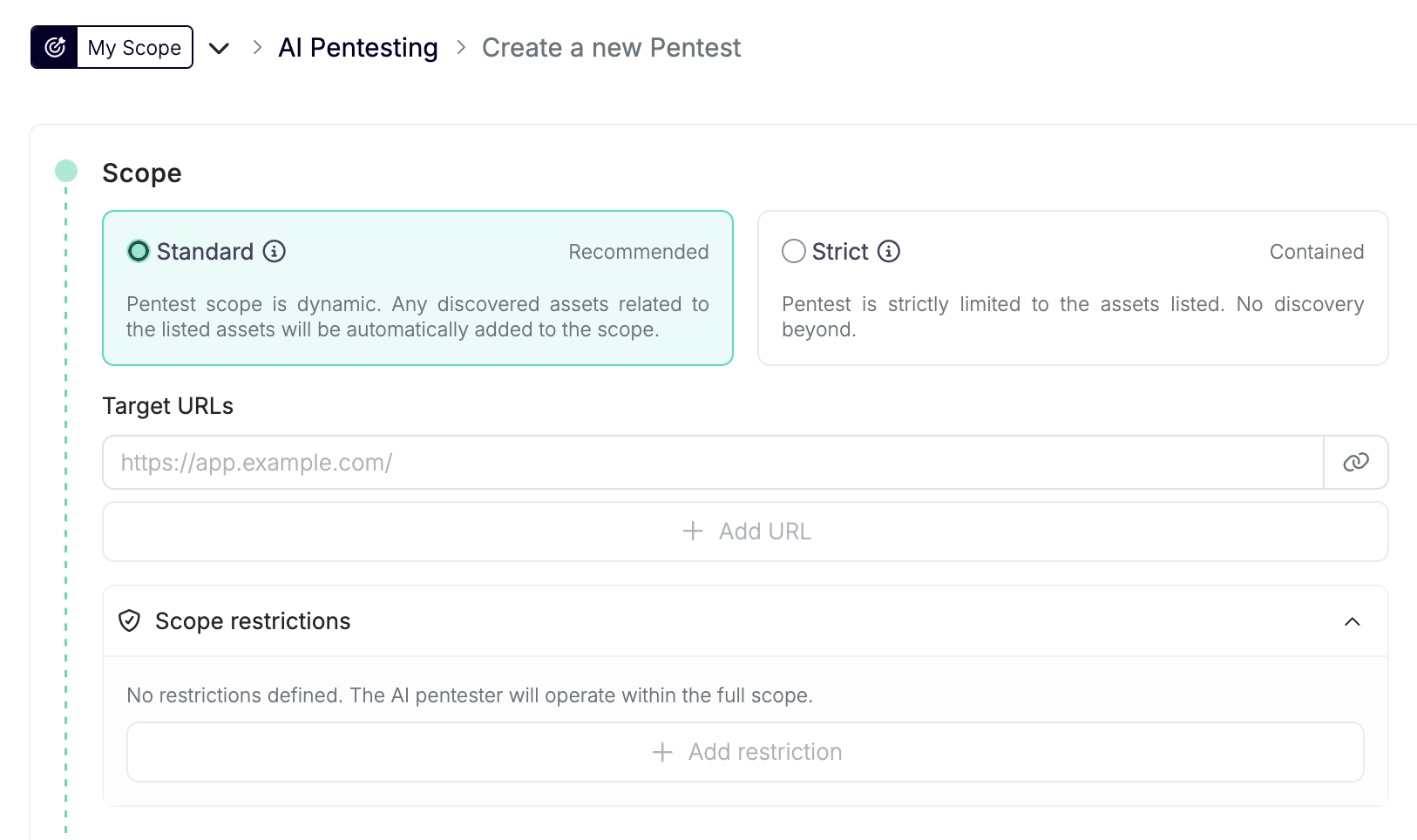
Step 2: Configure Scope
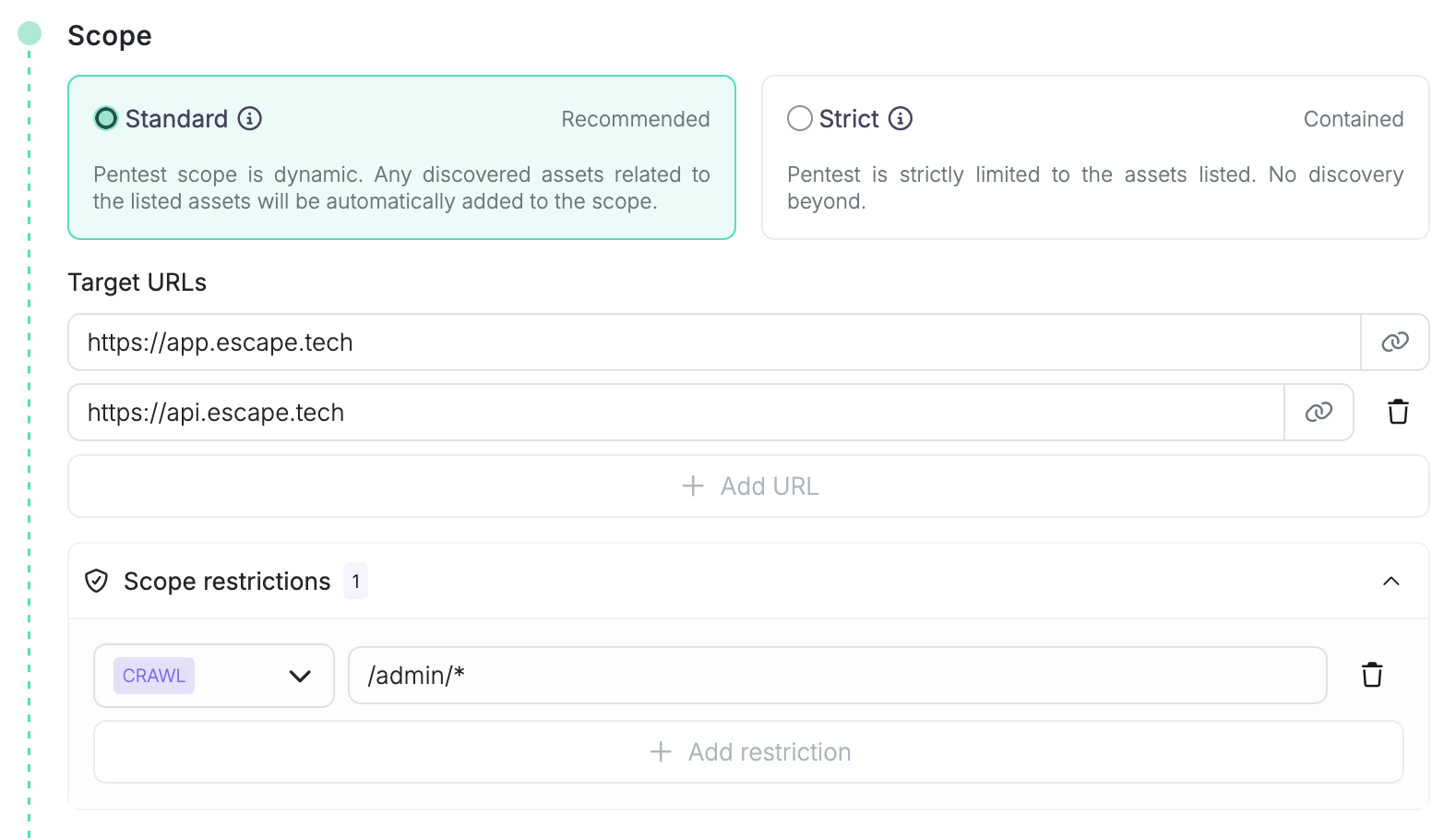
The Scope section defines what Escape is allowed to test. See Scope for the full reference.
- Choose the scope mode:
- Standard (recommended): Escape starts from your listed URLs and can explore related assets in the same application footprint.
- Strict: Escape tests the host and URL path prefixes you list, with read-only CDN and static-asset allowances. Include the APIs your frontend needs to render and function.
- Enter the primary target URL.
- Add extra URLs when the application spans multiple frontends, APIs, or related hosts.
- Optionally add scope restrictions (URL or GraphQL blocklist).
Escape validates and classifies the target during the review section. You don't need to choose WebApp, REST API, or GraphQL API manually.
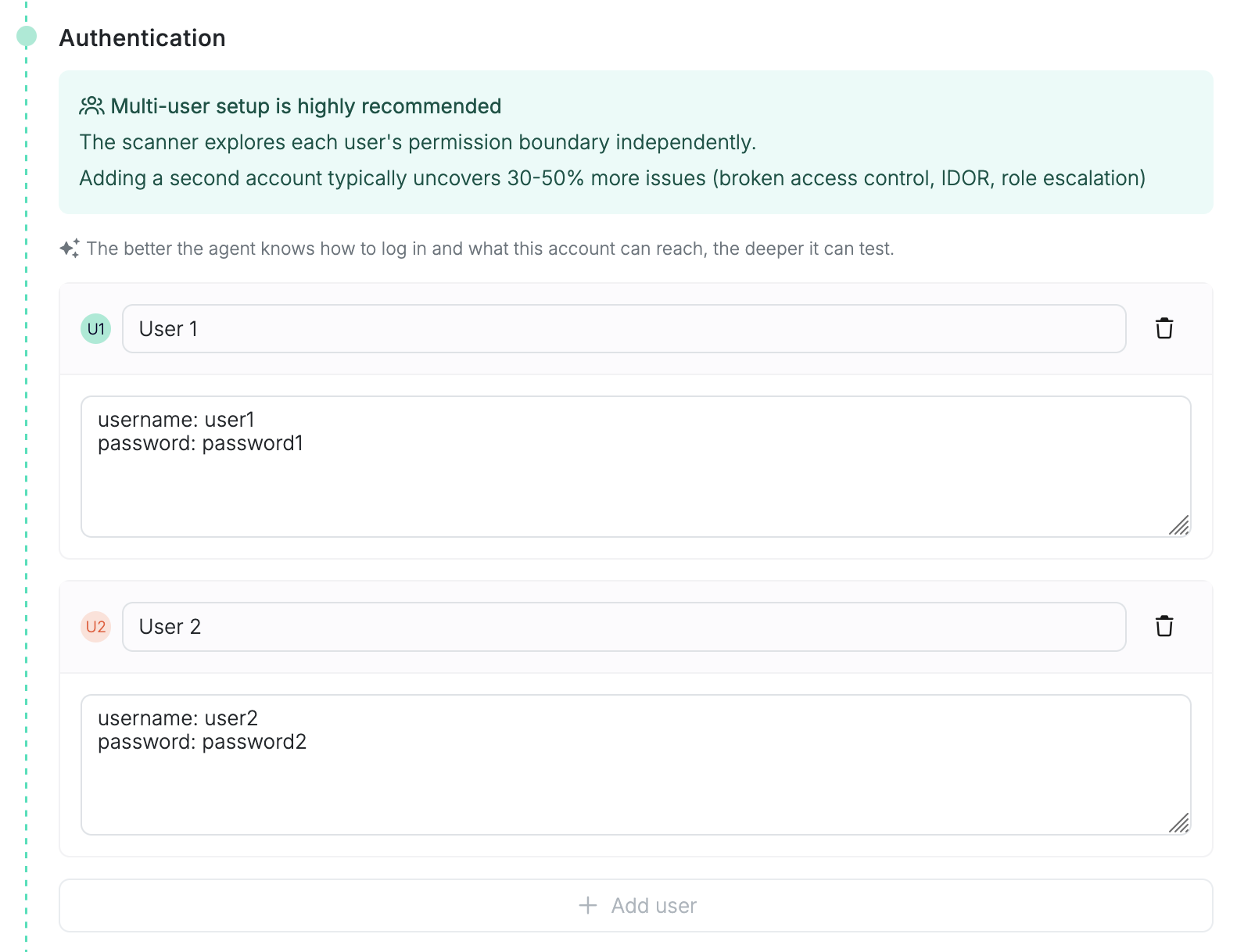
Step 3: Configure Authentication
The Authentication section tells the agent how to sign in and what each account can access.
For each user, provide:
- A name or email, such as
admin@example.com - Natural-language sign-in instructions, such as the login URL, credentials, MFA or TOTP notes, SSO details, and expected post-login state
Both the name and instructions are required for each user.
Pre-Authenticated Sessions
You can include session cookies, request headers, or localStorage values in the user's instructions. Include the domains and paths they apply to so Cascade can seed the browser session before navigation.
Leave the user list empty only when the target is public. For authorization testing, add at least two users with different roles or tenants. The agent explores each user's permission boundary independently, which is what makes BOLA, IDOR, and privilege-escalation testing useful.
For background on supported authentication patterns, see Authentication Configuration. In the New Profile form, the primary setup path is the per-user instruction field.
Step 4: Provide Source Code (Optional)
The Whitebox Configuration (Optional) section accepts repository archives (.zip, .tar.gz, .tgz).
When source code is attached, Escape switches into whitebox pentesting: it maps your architecture, auth model, and high-risk sinks from the code before exploiting the running application, so findings can point at the exact file and function behind a vulnerability.
You can also reuse an archive uploaded to a previous assessment instead of uploading it again.
Step 5: Fine-Tune Optional Settings
The Fine-Tune (Optional) section lets you add context and execution controls.
- Context: Add scope hints, business context, sensitive workflows, and areas to avoid. The UI accepts up to 4000 characters.
- Location: Run from Europe, the United States, or Canada (subject to region availability), or from a Private Location for internal applications.
- Duration: Set a maximum duration from 6 to 24 hours and a rate limit from 10 to 100 requests per second. Treat the duration as the assessment's time budget. Cancellation or failures can end a run sooner.
- Schedule: Launch immediately after confirmation, schedule a start time in your local timezone, or choose Don't schedule.
- Artifacts: Attach supporting material such as pentest reports, documentation, images (screenshots), plain-text and structured files (OpenAPI, HAR, Markdown), and CSVs. Source code archives belong in the Whitebox Configuration section covered in Step 4. The Regression Testing Agent uses uploaded PDF and Markdown reports to replay previously reported vulnerabilities.
The default setup is a 10-hour run, 20 requests per second, and the Europe public location.
Step 6: Review and Launch
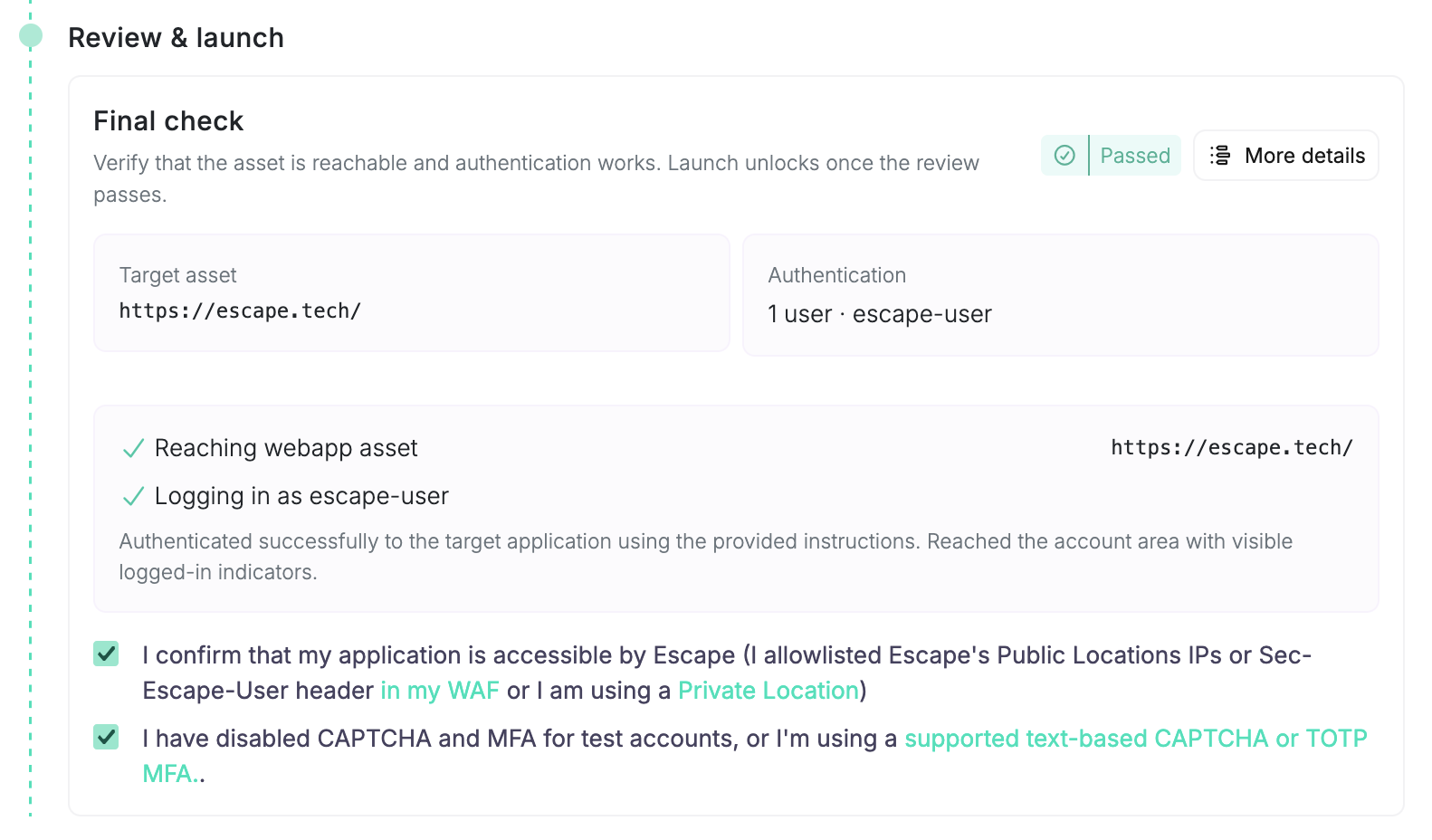
The Review & launch section is the pre-flight check before the assessment starts.
- Confirm that the application is reachable by Escape, either through WAF allowlisting, the
Sec-Escape-Userheader, or a Private Location. - Confirm that CAPTCHA and MFA are disabled for test accounts, or that you use a supported text-based CAPTCHA or TOTP MFA flow.
- Click Validate Configuration.
- Wait for validation to pass.
- Click Save & Launch.
- In Launch this assessment?, click Confirm & launch.
The validation run checks reachability, classifies the listed URLs, and tests authentication for each configured user. Save & Launch stays disabled until validation finishes successfully.
To save without launching or running validation, choose Save profile as draft.
The final confirmation summarizes the target, extra scope, users, location, duration, rate limit, scope mode, attached source code, and attached artifacts.
What Runs After Launch
Cascade runs the assessment and performs its own reconnaissance. An orchestrator plans the engagement, spawns focused worker agents on demand, and shares context between them based on discovered surfaces. A reporter agent independently re-verifies each candidate finding before it's filed.
Cascade spins up the specialists a target needs, which can cover:
- Access control: BOLA, IDOR, and privilege escalation across the configured users
- Cross-site scripting: reflected, stored, and DOM-based XSS
- SQL injection: reconnaissance and targeted exploitation
- Business logic: workflow and state-transition flaws
- Additional classes such as SSRF and command injection, depending on context and configuration
No manual agent selection is required for a first run.
Monitor Your Assessment
After launch:
- Monitor assessment progress in real time.
- Review agent logs and reasoning in the assessment details. See Proof of Exploit.
Stopping a Running Assessment
If you cancel an AI Pentesting assessment from the UI, CLI, or API, Escape immediately stops the active pentesting agent for that assessment.
Use cancellation when:
- The agent is exploring the wrong area
- You need to change authentication or assessment scope
Organization admins can also enable Cancel all current AI Pentesting scans and prevent all AI Pentesting scans from being started in Organization Settings > Scan Kill Switches. When this kill switch is enabled, Escape cancels running AI Pentesting assessments and blocks new or scheduled AI Pentesting assessments until the setting is disabled again. See Guardrails.
What Makes AI Pentesting Different?
Unlike traditional rule-based testing, AI Pentesting:
- Adapts its strategy dynamically
- Chains multiple requests to validate real impact
- Tests authorization boundaries across multiple roles
- Explores business logic instead of matching static patterns
This enables discovery of complex, multi-step vulnerabilities.
How to Read Results
AI Pentesting findings include:
- Vulnerability type and severity
- Concrete evidence (requests and responses)
- Agent reasoning logs (see Proof of Exploit)
- Clear reproduction steps
- Remediation guidance
Severity
Each filed issue carries an Escape Severity rating (Critical, High, Medium, Low, Info). Severity reflects the reproduced vulnerability's CVSS 4.0 score. The reporter agent must independently reproduce the exploit before the finding is filed; CVSS score and vector are shown on every confirmed issue.
Common First-Run Issues
No Findings
- Review agent logs to confirm coverage. See Proof of Exploit.
- Verify authentication is correctly configured
- Ensure your target scope is accessible
Authentication Failures
- Confirm credentials are valid and not expired
- Review the Authentication section instructions for each user
- Review authentication logs for errors
Slow Assessments
- Review rate limits
- Reduce scope if testing a large application
- Adjust timeout settings if necessary
For advanced troubleshooting, see: How It Works
Related Documentation
- How It Works
- Scope: Standard vs Strict, restrictions, and enforcement
- The Cascade Engine: Architecture, skills, and limits
- Authentication: Supported authentication patterns
- Private Locations: Test internal applications
- DAST Configuration: API testing configuration options
- Frontend DAST Configuration: WebApp testing configuration options