AI Remediation
Escape gives you remediation guidance in the dashboard and sends findings to your coding agent through Fix this finding. Use your coding agent to prepare the code changes in your repository. The default action is Fix in Claude Code.
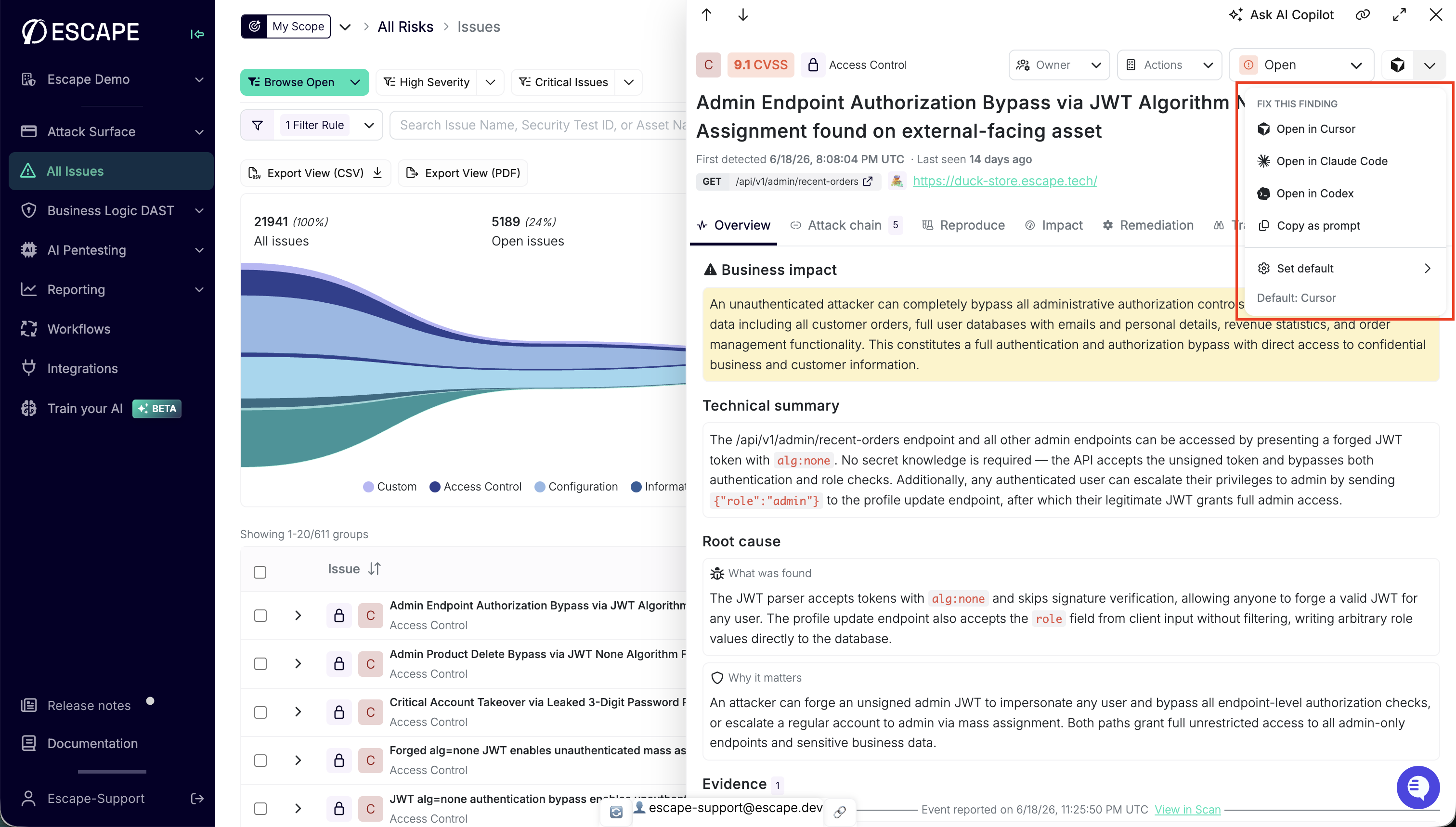 The fix button on the issue side panel: one click sends a codebase-tailored prompt to your IDE.
Remediation
On an AI Pentest finding, the issue overview includes a Remediation card. The first time you open the issue, Escape generates a short remediation: what to change in code or config. If the text isn't stored yet, it streams into the card.
Rate it with the thumbs up or thumbs down next to Is this remediation useful?
If generation fails, the card shows The remediation could not be generated. Click Retry.
For DAST findings, use the fix button on the Context card to send the finding to your coding agent. The Remediation card is specific to AI Pentesting findings.
Fix This Finding
Under the remediation (or under Context on a DAST finding), click the fix button to open your preferred coding agent. The prompt summarizes the finding's impact and context for your coding agent. Some details may be shortened.
The chevron next to the button opens Fix this finding:
- Open in Claude Code
- Open in Codex
- Open in Cursor
- Copy as prompt
If you haven't set a preference, the default button is Fix in Claude Code. Use Set default in that menu to change it. The choice is stored in the browser.
This flow doesn't require the Escape MCP server. For the prompt contents, default-action setup, and MCP if you want ongoing Escape access from the editor, see IDE Integrations.