Variables
Organization Variables hold values Escape injects into scans across the organization: base URLs, seeded credentials, tokens. You create them once, then reference them in profile configuration as ${KEY}. Secrets stay write-only in the UI. An External variable stores a pointer to a secret in Azure Key Vault. Escape reads that secret from your vault when a scan starts.
Creating, editing, or deleting variables, and linking vaults, requires Manage Vault Variables or Admin through a global role binding.
 Organization Variables, with New Variable, a secret row, and a plain text row.
Variable Types
| Type | What you store | In the UI |
|---|---|---|
| Plain text | A readable value | Shown in the list and when you open the row |
| Secret | A value Escape must not show again | Write-only after save; the list shows **** |
| External | A reference to a secret in Azure Key Vault | Source column shows the linked vault name |
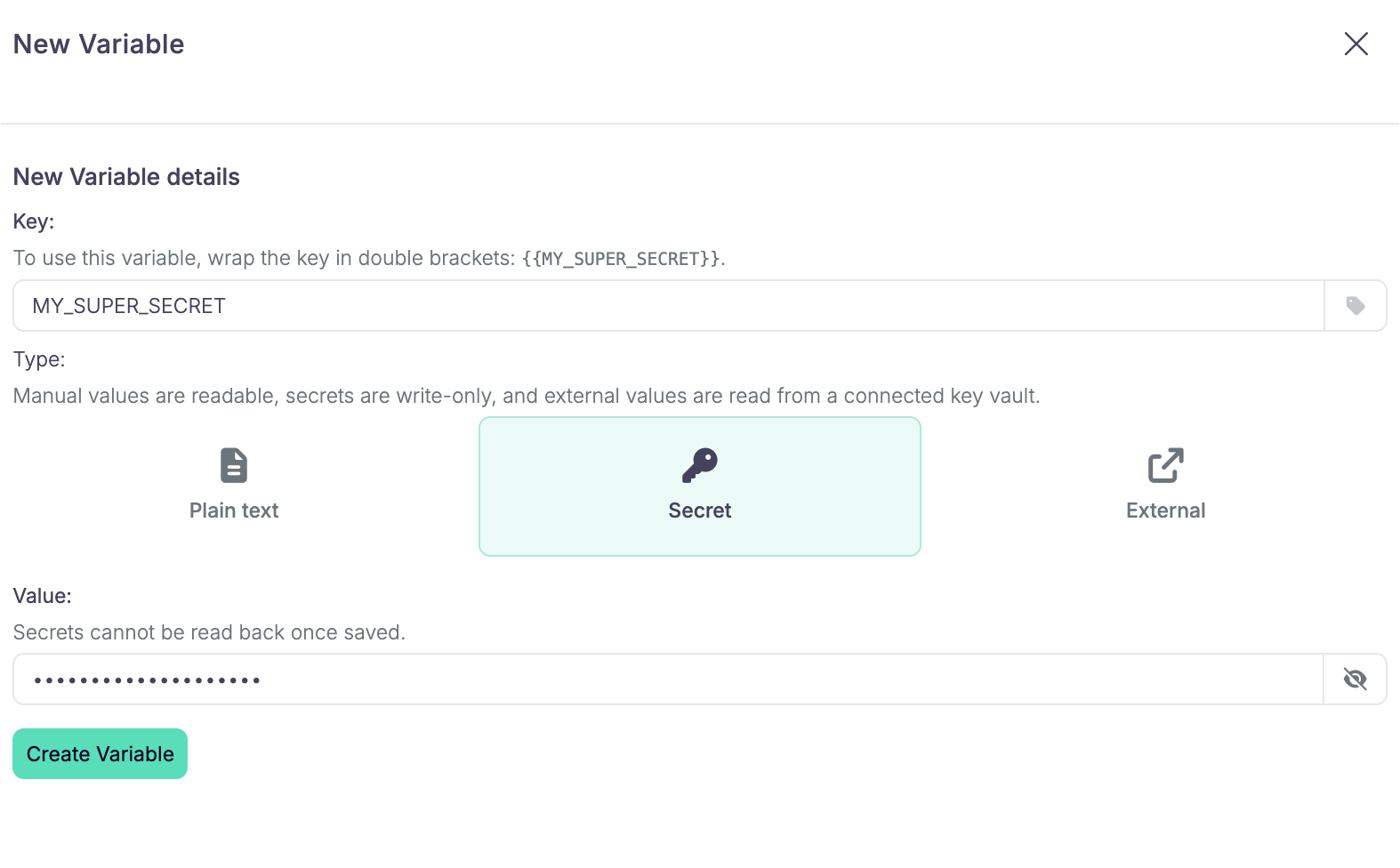 New Variable with Secret selected.
Create a Variable
- Open Organization, then Variables.
- Click New Variable.
- Set a Key. Scans reference it as
${KEY}. The key must beSCREAMING_SNAKE_CASE, start with a letter, stay within 128 characters, and be unique in the organization. Spaces inside the braces are fine:${ API_BASE_URL }resolves the same key as${API_BASE_URL}. - Pick a type, then set the value:
- Plain text or Secret: enter the value Escape should inject.
- External: pick the Azure Key Vault integration, the vault, and the secret name. If the vault is not linked yet, use Vault not listed? Link a new one.
- Click Create Variable.
Connect Azure Key Vault
External variables need an Azure Key Vault integration. Open Integrations, create an Azure Key Vault integration, and provide:
| Field | Value |
|---|---|
| Tenant ID | Directory (tenant) ID of your Entra ID tenant |
| Client ID | Application (client) ID of the registered app |
| Client Secret | Secret value created for the app |
Give the service principal:
- Reader on the subscriptions that hold the vaults Escape should list
- Key Vault Secrets User on each vault Escape should read
Validation lists the vaults, then tries to list the secret names in each one. A vault that cannot be reached is reported as a warning and does not fail the integration. A firewall or private endpoint on a vault must allow the integration location before Escape can read a secret there. For a public location, allow the public location IP addresses. A private location must be one whose egress the vault already allows.
When no key vault integration exists yet, the External type in New Variable points you to Integrations to connect one.
Use a Variable in a Profile
You can write ${KEY} instead of a literal anywhere a string value appears in scan configuration (authentication credentials, headers, URLs, and similar fields). Escape replaces the reference with the variable's value when the scan starts.
On an authentication user, put the variable in the credential fields. For example, Username is ${USERNAME} and Password is ${PASSWORD}.
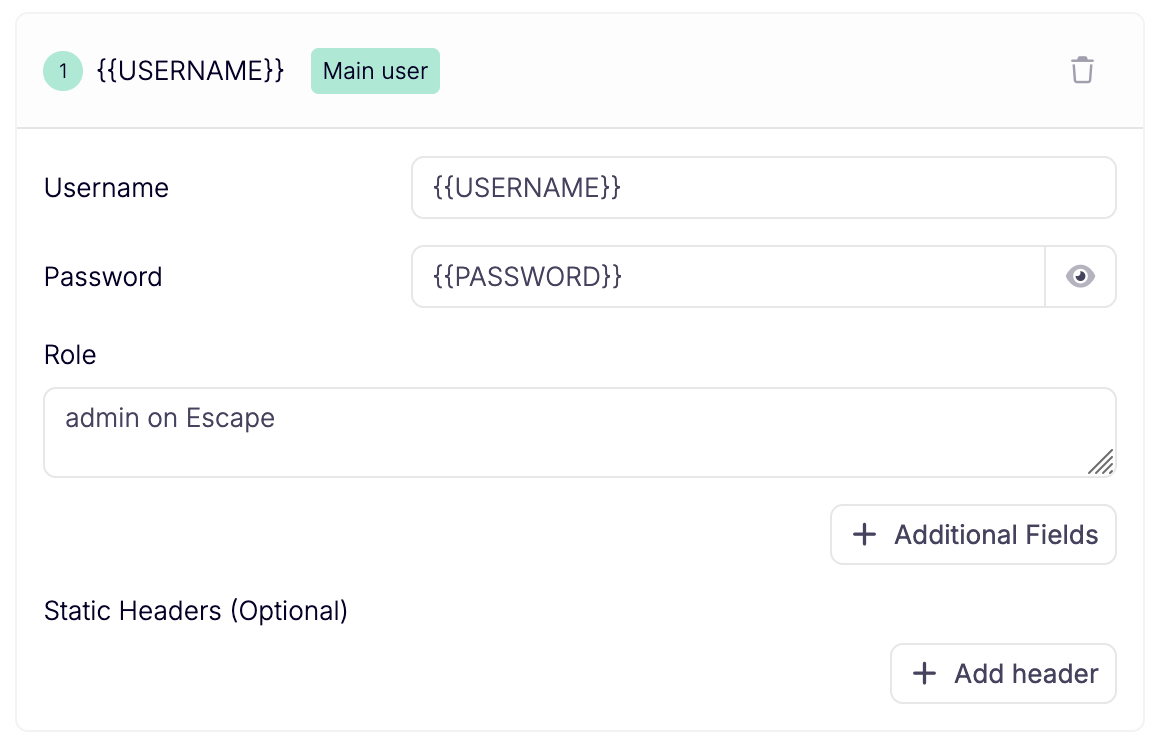 A profile user with variable references in the username and password.
JSON object keys are not templated. Only string values are.
If the name does not match a variable in the organization, the scan or validation fails at start. The failure lists the missing keys. Create the variables, or remove the references from the profile.
How Values Are Applied During a Scan
Escape reads every referenced variable once when the scan or validation starts, then reuses that snapshot for the whole run. A re-login later in the scan still uses the values from the start. Secrets must stay valid for the full scan duration.
External variables are read live from Azure Key Vault at that moment. If Escape can't read one (the secret was deleted or disabled, or access is refused), the scan fails at start instead of running without the credential.
Redaction
In customer-facing scan outputs, Escape replaces occurrences of secret and external values with [REDACTED: KEY] when the value is at least 6 characters long. Plain text values aren't redacted. Values shorter than 6 characters are left as is, so short placeholders don't wipe common words from logs. The variable form warns when a secret or an external secret is under that length, because that value will stay visible in scan logs.
Avoid secrets whose clear text also appears in normal application data. A secret set to password, for example, would redact every password string in the output.
Related
- Authentication: where credentials often use
${KEY} - Manage Vault Variables: permission required to manage variables and link vaults
- Audit Logs: vault links, variable changes, and variable use by workflows