IDE Integration Guide
Escape connects findings to your editor in two ways: Fix this finding sends a codebase-tailored remediation prompt from any issue in one click, and the Escape MCP server gives you ongoing access to Escape from inside Cursor, Claude Code, VS Code, and other MCP-compatible editors.
Fix This Finding from the Issue Side Panel
Open any issue in the issue side panel and use Fix this finding to send a remediation prompt straight to your coding agent.
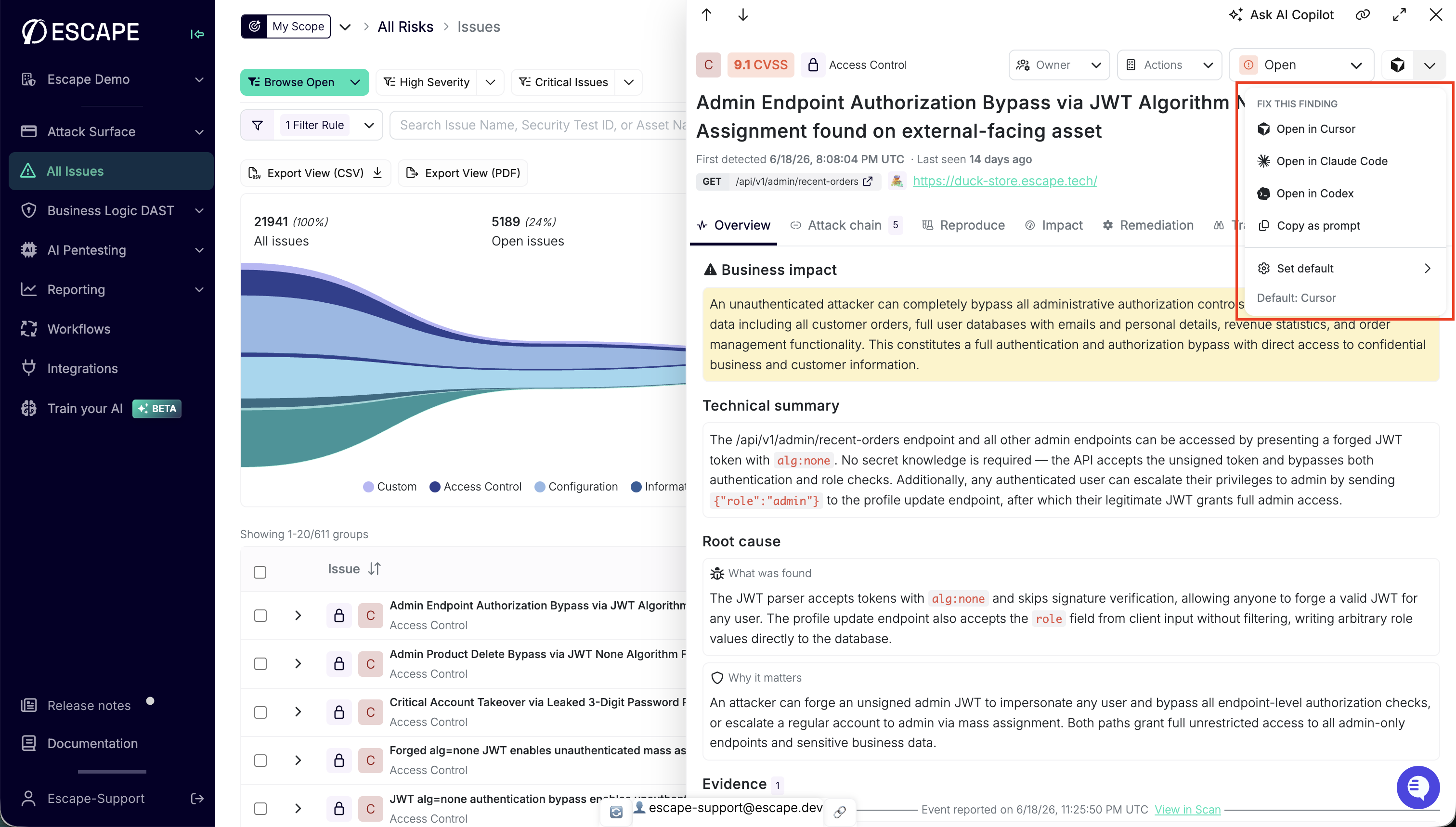 The Fix this finding menu: one click sends a codebase-tailored prompt to your IDE.
Available Actions
- Open in Claude Code: opens a new Claude Code session with the prompt.
- Open in Codex: opens a new Codex thread with the prompt.
- Open in Cursor: opens Cursor with the full prompt preloaded through a native deep link.
- Copy as prompt: copies the remediation prompt to your clipboard for any other workflow.
The prompt summarizes the finding's impact and context for your coding agent. Some details may be shortened.
Default Action
The fix button remembers your preferred target in browser local storage. Click the chevron next to the fix button, open Set default, and pick Claude Code, Codex, Cursor, or Copy as prompt. The main button then runs that action in one click. If you haven't set a preference, Claude Code is the default. A previously saved preference is kept.
No MCP setup required
Fix this finding works without configuring the Escape MCP server in your IDE. MCP setup below is for open-ended Escape queries from your editor, not for this one-click remediation flow.
MCP Server Setup
The Escape MCP (Model Context Protocol) server can be integrated into various IDEs, including Visual Studio Code, Cursor, Claude Code, and other MCP-compatible editors. This section covers configuration for accessing Escape's capabilities directly within your development environment.
Prerequisites
- An active Escape account
- Visual Studio Code, Cursor, Claude Code, or another MCP-compatible IDE
- Internet connection to access the Escape MCP server
Step 1: Pick Your Authentication Flow
The Escape MCP server supports two flows. Both end up calling the same Public API on your behalf: pick whichever fits your IDE and workflow:
- OAuth 2.1 (recommended): your IDE opens a browser, you click Allow on a consent page hosted on
app.escape.tech, and the IDE silently receives a bearer token. No API key copy-paste. Works with any client implementing the MCP 2025-06-18 Authorization spec: Cursor, Claude Code, Claude Desktop, ChatGPT desktop, Continue.dev, Zed, Windsurf, Codeium, and any future MCP-compliant client. - Static API key (
Authorization: KeyorX-ESCAPE-API-KEY): pass your key as an HTTP header in the IDE config. Required for clients that don't yet implement the OAuth handshake, and for headless / CI environments. Works in every MCP client.
If you're not sure which to pick: try OAuth first; fall back to the static key only if your IDE's MCP support doesn't perform the handshake yet.
For the static-key flow, obtain an API key from your User Settings and keep it handy. For the OAuth flow, no API key is needed in the IDE config. Approving the consent page grants your IDE access with your Escape user permissions.
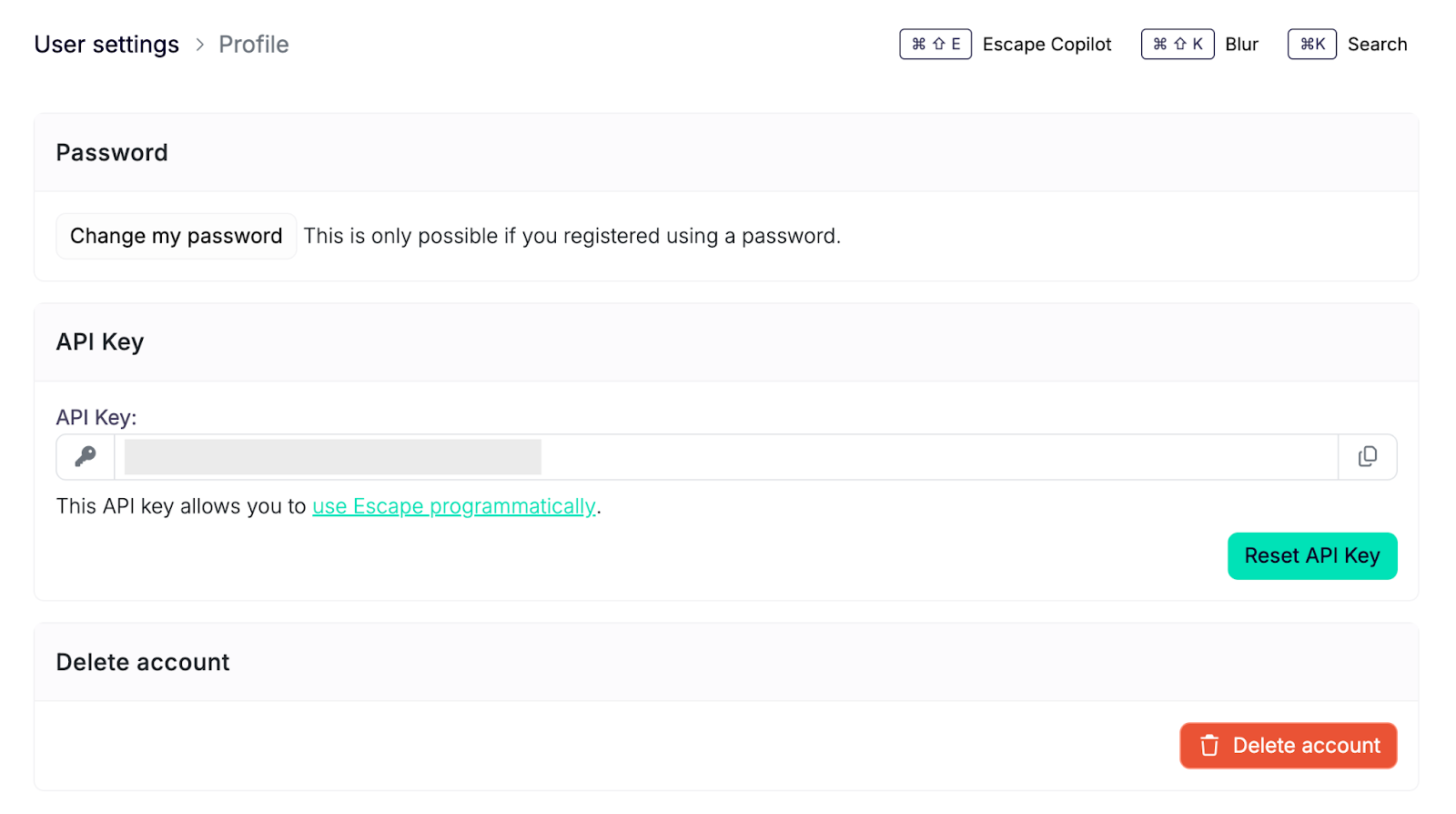
API Key and OAuth Token Security
API keys provide full access to your Escape account through the Public API. Store your API key securely and never commit it to version control systems. Treat it with the same care as a password. OAuth avoids copying a key into your IDE configuration, but the access token your client stores is your API key. The token response advertises a one-year lifetime. Rotating or revoking the underlying key invalidates it on the next call. Protect the cached token like an API key.
Step 2: Configure MCP Server in Your IDE
Visual Studio Code
Visual Studio Code provides native support for MCP servers through the MCP extension.
-
Create or edit
.vscode/mcp.jsonin your workspace root. -
Add the Escape MCP server configuration. Pick the tab matching your auth flow:
OAuth 2.1 (recommended)
On the first tool call, VS Code will open your browser to
https://app.escape.tech/oauth/mcp/authorize, you click Allow, and the bearer token is cached locally by the IDE. -
Save the file and reload VS Code.
Workspace vs Global Configuration
The .vscode/mcp.json file is workspace-specific. For global configuration across all projects, consult the VS Code MCP documentation.
Cursor
Cursor implements the OAuth 2.1 handshake natively, so the recommended flow is the no-headers one:
OAuth 2.1 (recommended)
-
Open Cursor Settings → MCP (or edit
~/.cursor/mcp.json). -
Add:
-
On first use, Cursor opens a browser to the consent page; click Allow. No API key required.
Static API key
Use the same mcp.json shape as VS Code above (headers.X-ESCAPE-API-KEY). Useful if you specifically want to scope which Escape user the IDE acts as without going through the dashboard session.
Claude Code (CLI)
Claude Code supports both flows. The OAuth one is preferred for interactive use, the header form for headless/scripted contexts.
OAuth 2.1
Add to your Claude Code MCP config (typically ~/.config/claude/mcp.json or via claude mcp add):
On first use, Claude Code opens a browser for the consent page.
Other IDEs and MCP Clients
Any client implementing the Model Context Protocol can connect to the Escape MCP server. Native OAuth support is verified with Claude Desktop / Web, Cowork, Cursor, OpenAI ChatGPT / Codex, Continue.dev, Zed, Windsurf / Codeium and VS Code / Copilot.
Your client's OAuth callback doesn't need to be registered with Escape, but it has to take one of these forms, so MCP gateways and proxies on your own domain work too:
| Callback form | Accepted |
|---|---|
| HTTPS, any host | https://<any host>/<any path>, with or without a port |
| Loopback (any client) | http://127.0.0.1:*, http://localhost:*, http://[::1]:* |
| Custom URI scheme (native) | cursor://…, vscode://…, com.example.app:/… |
Everything else is rejected: cleartext http:// to any host other than loopback, callbacks carrying credentials (https://user:pass@host) or a fragment (#…), and schemes a browser could execute, such as javascript:, data: or file:.
Since the host isn't registered in advance, the consent page is what protects your account: it shows the full destination URI that will receive an access token for your account. If you didn't start the connection, or don't recognise that destination, click Deny.
For clients without OAuth support, the static-key fallback works universally:
- Endpoint:
https://mcp.escape.tech/mcp - Authentication header:
Authorization: Key your_api_key_hereorX-ESCAPE-API-KEY: your_api_key_here - Protocol: HTTP-based MCP
Consult your IDE's documentation for specific MCP server configuration instructions.
Step 3: Verify the Connection
After configuration, verification ensures the MCP server is accessible and operational within your IDE.
-
Restart your IDE or reload the window
- VS Code:
Ctrl+Shift+P→ "Developer: Reload Window" - Cursor:
Cmd+R(macOS) orCtrl+R(Windows/Linux) - Claude Code:
claude mcp listto confirmescapeis registered
- VS Code:
-
Open your AI assistant interface (for example, Copilot or Claude)
-
OAuth flow only: on the very first use, your browser opens at
https://app.escape.tech/oauth/mcp/authorize. Click Allow to grant the IDE access. The token is then cached locally; subsequent sessions skip this step. -
Verify that Escape MCP tools are available in the tool list

Connection Verified
When properly configured, the Escape MCP server provides access to application management, scan operations, domain management, and security analysis capabilities directly within your IDE.
Vulnerability Remediation in Your IDE
Once configured, you can use the Escape MCP server to help remediate findings directly in your IDE. Learn how to fix vulnerabilities without leaving your development environment in this blog article about fixing vulnerabilities with MCP.
Troubleshooting
MCP Server Not Appearing
- Verify the
mcp.jsonfile is in the correct location (.vscode/mcp.jsonat workspace root,~/.cursor/mcp.jsonfor Cursor, the path printed byclaude mcp listfor Claude Code). - Confirm JSON syntax is valid (use a JSON validator).
- For the static-key flow, ensure the API key is correct and hasn't been regenerated.
- Restart the IDE after configuration changes.
OAuth Flow: Browser Doesn't Open / Consent Page Rejects the Redirect
- Callback hosts don't need to be registered, but the callback form must be one we accept. If the consent page reports
redirect_uri is not allowed, check the scheme: cleartexthttp://is only accepted on loopback, everything else must behttps://or a custom URI scheme. Credentials in the URL and a#fragment are rejected whatever the scheme. - A localhost callback works over either
http://orhttps://. Loopback is the only host where cleartexthttp://is accepted, but it doesn't rule HTTPS out. - After clicking Allow, your IDE should redirect back automatically. If nothing happens, check the IDE's MCP / output panel for connection errors and use your client's reconnect action to retry.
OAuth Flow: "Connect" Button Never Appears in the IDE
Your IDE has cached an OAuth bearer token from a previous session. Disconnect / remove the MCP entry, then re-add it to force a fresh handshake. As a server-side reset, rotating your API key from the Escape dashboard invalidates every cached token (OAuth and static alike) on the next call.
Authentication Errors (Static-Key Flow)
- Verify the API key is active in your Escape user settings.
- Check that the header is one of
Authorization: Key <key>orX-ESCAPE-API-KEY: <key>(header name inX-ESCAPE-API-KEYis case-sensitive in some HTTP clients). - Ensure the API key hasn't been revoked or regenerated.
Connection Timeouts
- Confirm internet connectivity.
- Verify your network allows HTTPS connections to
https://mcp.escape.techand (for OAuth)https://app.escape.tech. - Check for proxy or firewall configurations that may block the connection.
Security Best Practices
- Prefer OAuth where supported: keeps the API key out of your IDE configuration. Protect the token your client caches.
- Never commit API keys: For the static-key flow, add
.vscode/mcp.json(and equivalents) to your.gitignore. - Use environment variables: Consider referencing environment variables in your MCP configuration if your IDE supports it.
- Rotate keys regularly: Periodically regenerate API keys in your Escape user settings: this also resets cached OAuth tokens.
- Scope access appropriately: API keys (and OAuth tokens, which are the same key) inherit your user permissions: ensure your account has only the necessary access level.
Next Steps
- Explore Escape Copilot capabilities
- Review the Public API documentation
- Configure automated scanning workflows