Linear Integration
Connect Linear so Escape can create Linear issues from security issues, attach request evidence, and keep status in sync both ways.
Beta
The Linear integration is in beta. Ask your Escape contact to enable it for your organization. Until then, the Linear card doesn't appear on the Integrations page.
Workflow Required for Issue Creation
A workflow must include a Linear export action before Escape can create Linear issues. After you connect the integration, create a workflow with that export action.
Configuration
Create a Linear API Key
Escape connects to Linear with a personal API key. The key acts as its owner, so create it from a dedicated Linear account to keep the tickets attributed to that account.
-
In Linear, open Settings > Security & access.
-
Create a Personal API key.
-
Give it the Read and Create issues permissions. That's enough to create issues, move them to another state, and attach the evidence files.
-
Copy the key. It starts with
lin_api_.
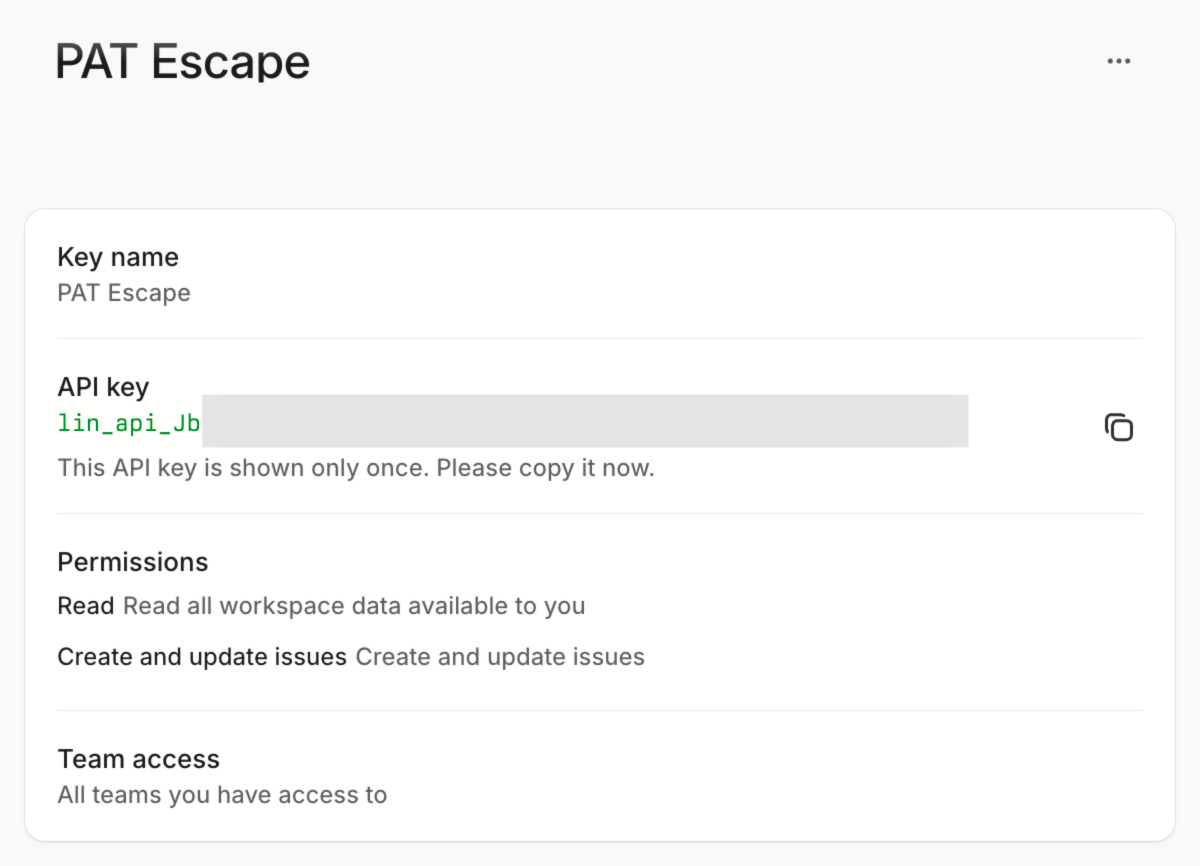
Never share your API key
Don't reuse a personal key you also use elsewhere. Escape stores the key with the integration and never shows it again, so you enter it again when you edit the integration.
Create a Linear Integration
-
Go to the Integrations page from the left navigation menu.
-
Open the Linear card in the Ticketing section.
-
Click +Create new integration.
-
Set Enter your integration's name.
-
Paste the key in API key.
-
Click Test Integration.
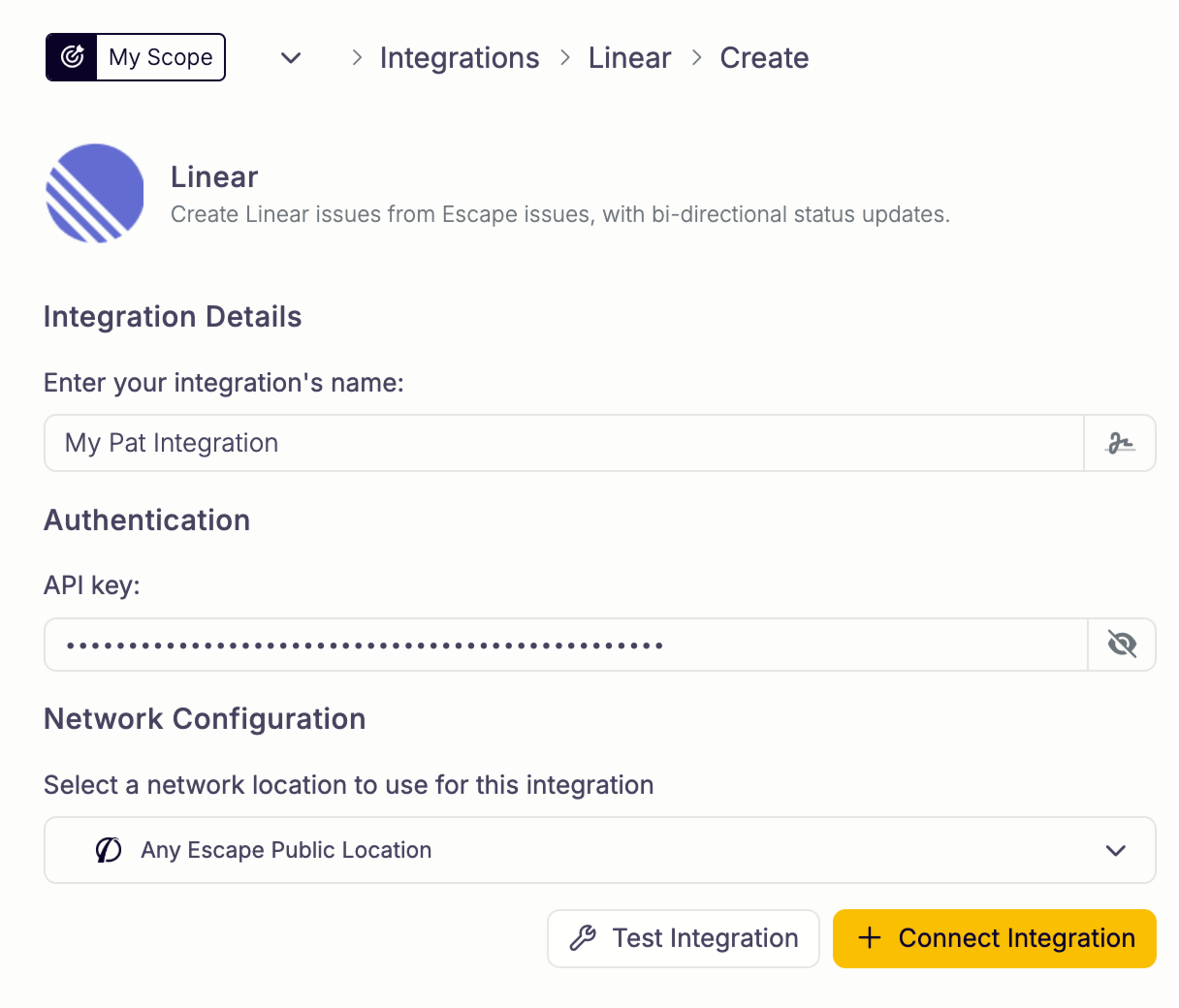
Validation reads your Linear workspace with the key and creates nothing.
Linear is a cloud service, so Escape connects to it directly. The Network Configuration setting has no effect on this integration.
Edit a Linear Integration
- Go to the Integrations page.
- Open the Linear card.
- Click Edit next to the integration.
- Enter the API key again, because Escape doesn't show it. Change the name if you need to.
- Save, then Test Integration.
Delete a Linear Integration
- Go to the Integrations page.
- Open the Linear card.
- Click Delete next to the integration.
Consequences of Deleting an Integration
Deleting the integration stops the workflows that export with it, and you can no longer create Linear issues from those workflows or from the issue sidepanel.
Update or remove those workflows first, or create a replacement integration.
Using Linear in Workflows
Add an Export action and select Linear, then pick the integration and the Linear team.
Supported workflow triggers:
| Trigger | What the export does |
|---|---|
| New Issue | Creates and links a Linear issue |
| Manual | Creates and links a Linear issue (run from the issue sidepanel menu) |
| Issue Updated | Moves the linked Linear issue to a workflow state that matches the new Escape status |
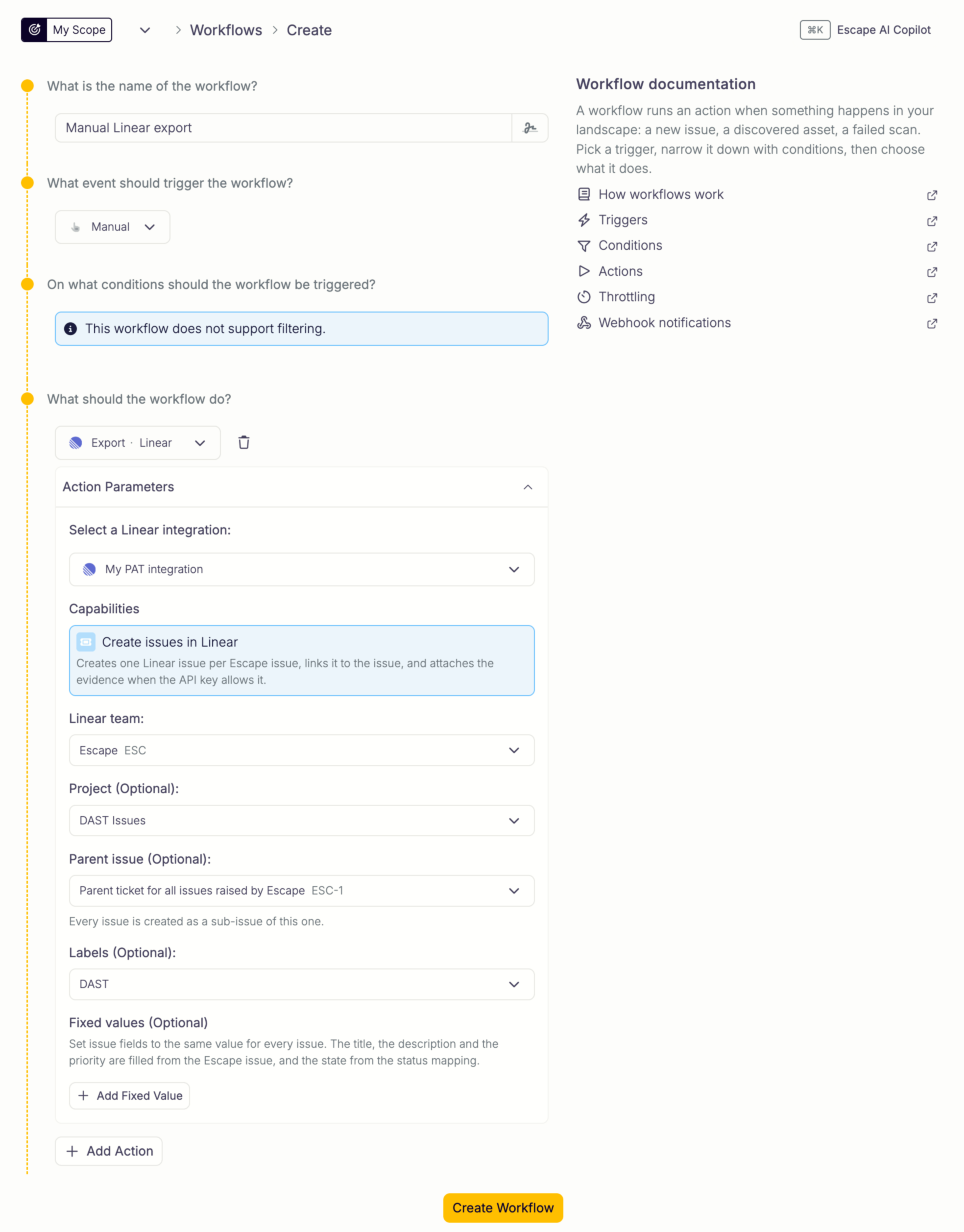
Team, Project, Parent, and Labels
- Linear team (required): the team that owns the issues. Changing the team clears the project, parent issue, labels, status mapping, and any fixed value that names a project, a cycle, or labels, because they belong to one team.
- Project (optional, create triggers only): the Linear project the issues join.
- Parent issue (optional, create triggers only): Escape creates every issue as a sub-issue of this one. Search it by title.
- Labels (optional, create triggers only): labels added to every issue.
Default Fields
Escape always sets:
- Title: the Escape issue name.
- Description: the issue context and remediation, ending with a
View in Escape:link to the issue. - Priority: from the severity.
| Escape severity | Linear priority |
|---|---|
| Critical | Urgent |
| High | High |
| Medium | Medium |
| Low | Low |
| Info | No priority |
A new issue starts in the Linear state that matches its Escape status. An open issue starts in the first unstarted state of the team, or the first backlog state if there's none. You can choose another state in the status mapping.
Fixed Values
Set a field to the same value on every issue created by the action: assignee, labels, project, cycle, estimate, or due date. The title, description, priority, and state come from Escape, so you can't set them here. Labels add up: the action labels and the fixed labels are all applied, without duplicates.
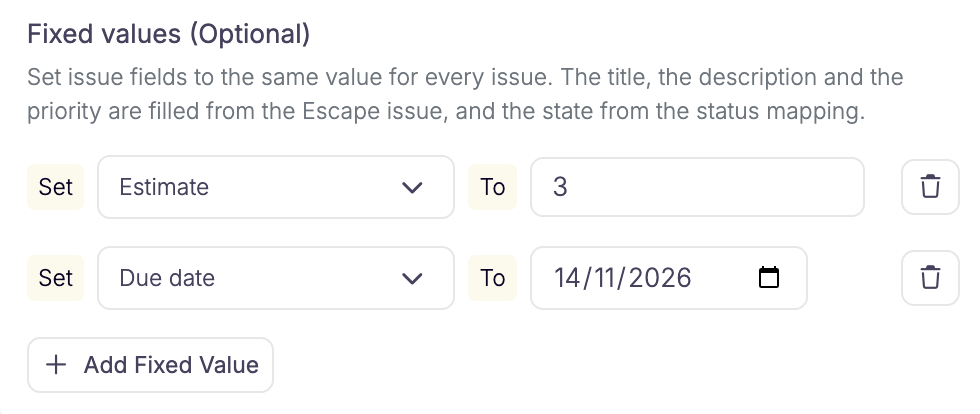
- Cycle: one of the team's cycles that hasn't ended. The cycle is fixed, so when it ends, pick the next one.
- Estimate: a whole number, 0 or more.
- Due date: a date.
Escape writes these values when it creates the issue. It applies no logic to them and doesn't sync them afterwards.
A fixed value that doesn't fit its field is left out with the warning Some fixed values were skipped, and the issue is still created. For example, an assignee that isn't a Linear user, an estimate that isn't a whole number, or a date that doesn't exist.
Evidence
After creating an issue, Escape attaches the HTTP exchanges of the issue as files named exchange-{id}.json. If Linear refuses to store the files, Escape logs the warning Evidence upload was refused once and creates the issues without files. Any other upload failure is logged as Failed to attach evidence to the issue and skips that file only.
Usage
Creating Linear Issues From Workflows
When a New Issue workflow fires, Escape creates one Linear issue per matching issue, then stores the Linear issue and its URL on the Escape ticket. A retry after a lost answer links the existing Linear issue instead of creating a second one, and uploads its evidence.
Creation skips Ignored and False Positive issues. An export with only Ignored or False Positive issues fails. Existing tickets are skipped with the warning Export skipped: issue already has a ticket, including tickets from other workflows. Manual can recreate a Linear issue only when its ticket belongs to that workflow and Linear no longer lists the issue.
Creating Linear Issues Manually
- Open an issue sidepanel.
- Open the menu (⋮) at the top right of the panel.
- Under Run a workflow, select a workflow whose export action uses Linear.
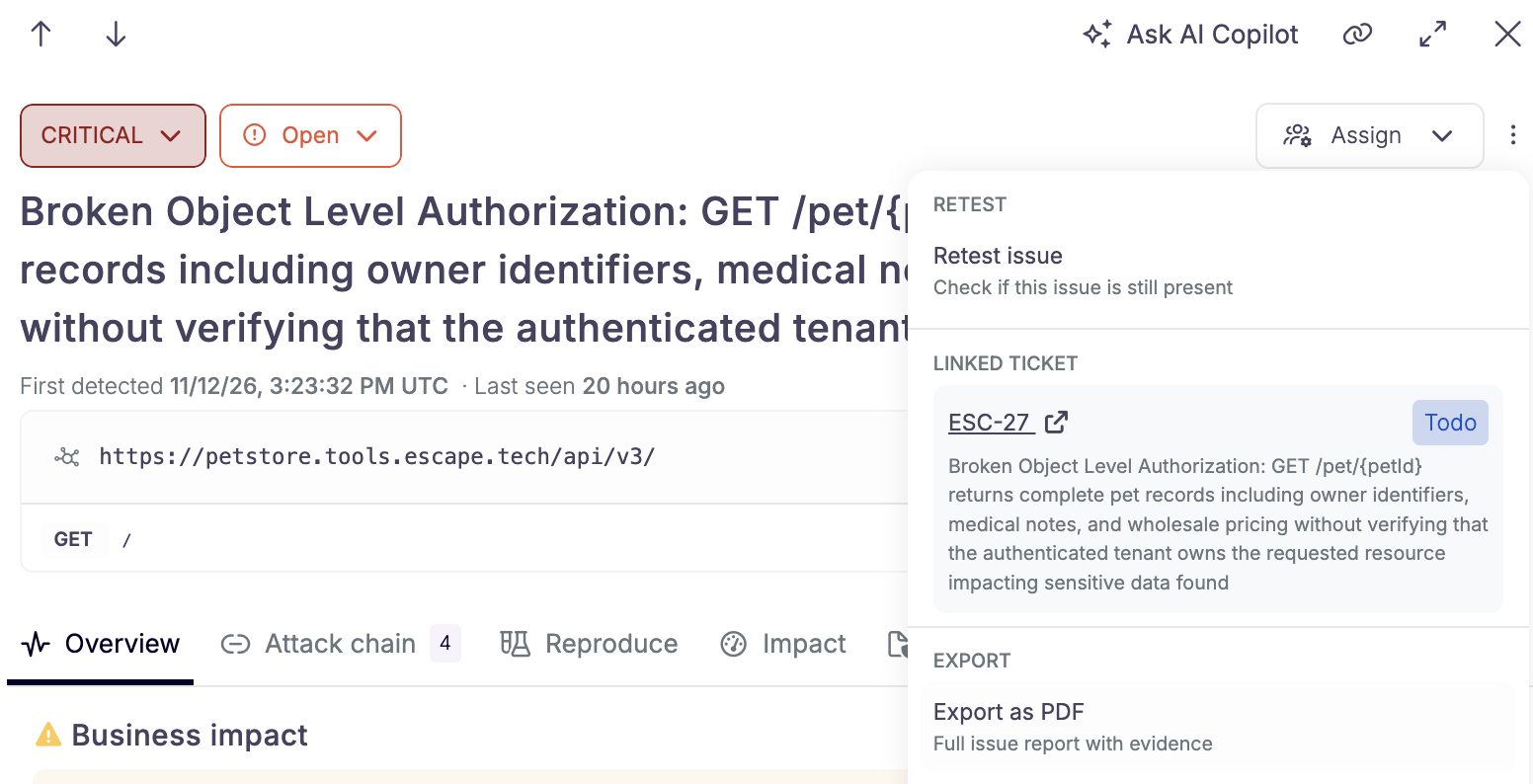
The workflow's team, project, parent, labels, and fixed values are used. The menu then shows a Linked Ticket card with the key of the Linear issue, its title, and its current Linear state, read live from Linear. If someone deletes the Linear issue, the card shows Not found, and you can run a workflow again to create a new one.
Bi-Directional Status Sync
Escape keeps the status of an issue and the state of its Linear issue in step. The later change wins: if you change the Escape status after the last state change in Linear, Escape moves the Linear issue. If someone changes the state in Linear after the last Escape status change, the Escape issue takes the new status. Equal times write nothing.
Status Mapping
Add the optional Status mapping to an Issue Updated export to choose the workflow state for each Escape status. The list shows the states of the selected team with their type. Without a choice, the default applies.
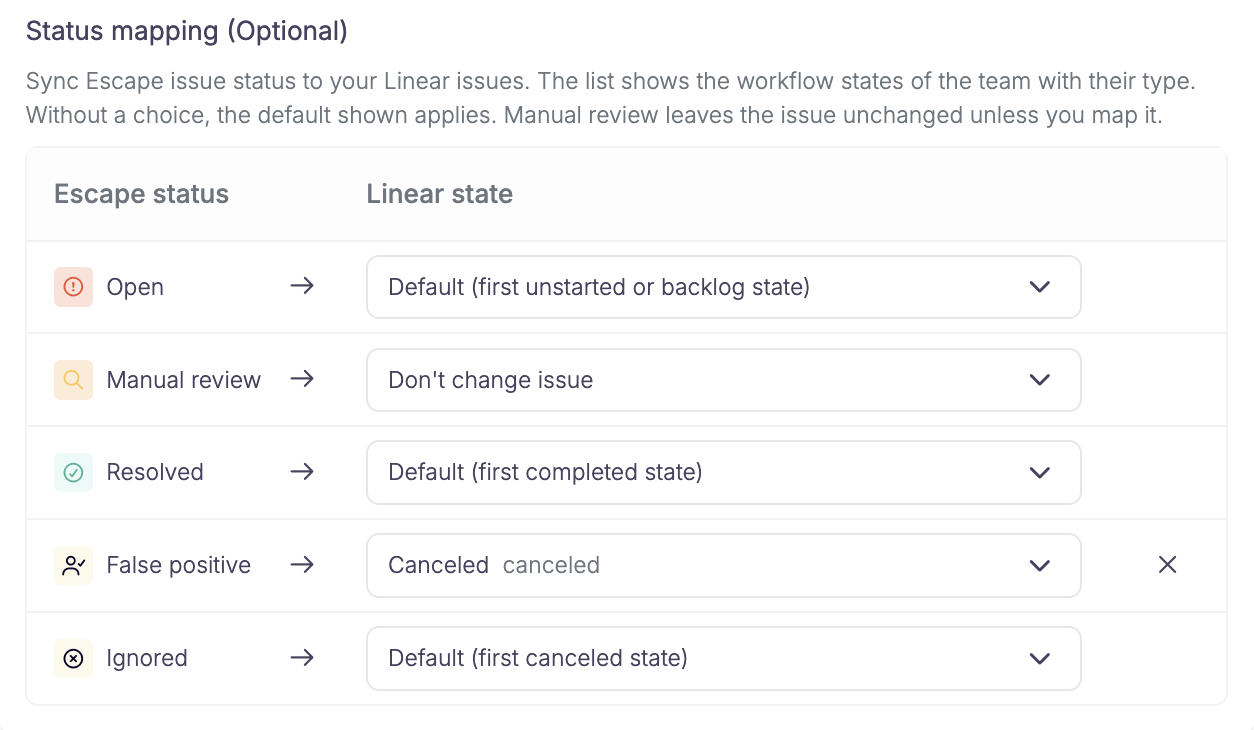
| Escape status | Default Linear state |
|---|---|
| Open | First unstarted state |
| Resolved | First completed state |
| Ignored | First canceled state |
| False Positive | First canceled state |
| Manual Review | Don't change the Linear issue |
Escape picks states by their type, never by their name, so a team that renamed Done to Shipped still works. The first state of a type is the first one on the board.
Escape to Linear
Use a workflow with the Issue Updated trigger and a Linear export.
Escape moves a Linear issue only when it isn't already where the new status puts it. A started issue isn't moved back to unstarted when you reopen the Escape issue, and a completed issue isn't moved again when you resolve it. A canceled issue is closed but isn't resolved, so resolving the Escape issue moves it to the first completed state. When a move is needed, Escape uses the state you mapped for the new status.
A Linear issue that is archived or deleted isn't moved. Escape logs a warning, and you can create a new one with a Manual workflow.
Linear to Escape
No extra workflow is required.
Escape runs a built-in pull for each Linear integration at least once a day. It also runs after you create or update the integration, and when you click the refresh button next to Lastly Pulled on the integration page. The pull reads every Linear issue the integration created and compares its state with the Escape issue.
| Linear state type | Escape status |
|---|---|
completed |
Resolved |
canceled, duplicate |
Ignored |
triage, backlog, unstarted, started |
Open |
A state you mapped in the Issue Updated action of the same team wins: it stands for the Escape statuses mapped to it. When several statuses map to one state, the current status of the issue wins.
Some statuses protect themselves from a scan:
- A False Positive or Ignored issue stays as it is when its Linear issue is completed or canceled. The closed Linear issue already stands for it.
- An open Linear issue doesn't change a Manual Review issue.
- A later scan that still finds the issue doesn't outrank a change you made in Linear after you set one of these statuses. For an Open or Resolved issue it does count: a scan that finds a resolved issue again reopens its Linear issue.
The pull writes the Escape status directly, so it never starts an Issue Updated workflow and nothing loops.
Several Teams
A status mapping holds the states of one Linear team. If your issues go to several teams, create one New Issue workflow and one Issue Updated workflow for each team, with the same filters on the Escape side. Escape filters issues by their own properties, not by Linear team.
An Issue Updated workflow skips a Linear issue that belongs to another team when the status is mapped, with the warning Status sync skipped: ... is in another Linear team. A status with no mapping moves the issue by state type, in the team the issue belongs to. The pull uses the Issue Updated workflow of the team the Linear issue is in.
Troubleshooting
| Message | What it means |
|---|---|
| Evidence upload was refused | Linear refused to store the evidence files for this key. Issues are created without evidence files. |
| Some fixed values were skipped | A fixed value doesn't fit its Linear field. The issue is created without it. |
| Export skipped: issue already has a ticket | The issue is already linked to a Linear issue. |
| Status sync skipped: ticket belongs to another integration | The Linear issue was created through another Linear integration, so this one doesn't touch it. |
| Status sync skipped: ... is in another Linear team | The status is mapped, and the Linear issue isn't in the team of this action. See Several Teams. |
| Linked Linear issue ... was not found, or is archived or deleted | Linear no longer lists the issue. Run a Manual workflow to create a new one. |
| Linear request … failed with HTTP 429, or Linear could not … with a rate limit message | Linear refused the requests because the key is over its request limit. The run stops, and the next run retries. |
| Linear status mapping cannot be applied | The mapped state is archived, belongs to another team, or the team has no state of the needed type. Edit the status mapping. |