Email Notifications
Email notifications allow you to send vulnerability alerts directly to email addresses, or automatically notify owners and project members.
Configuration
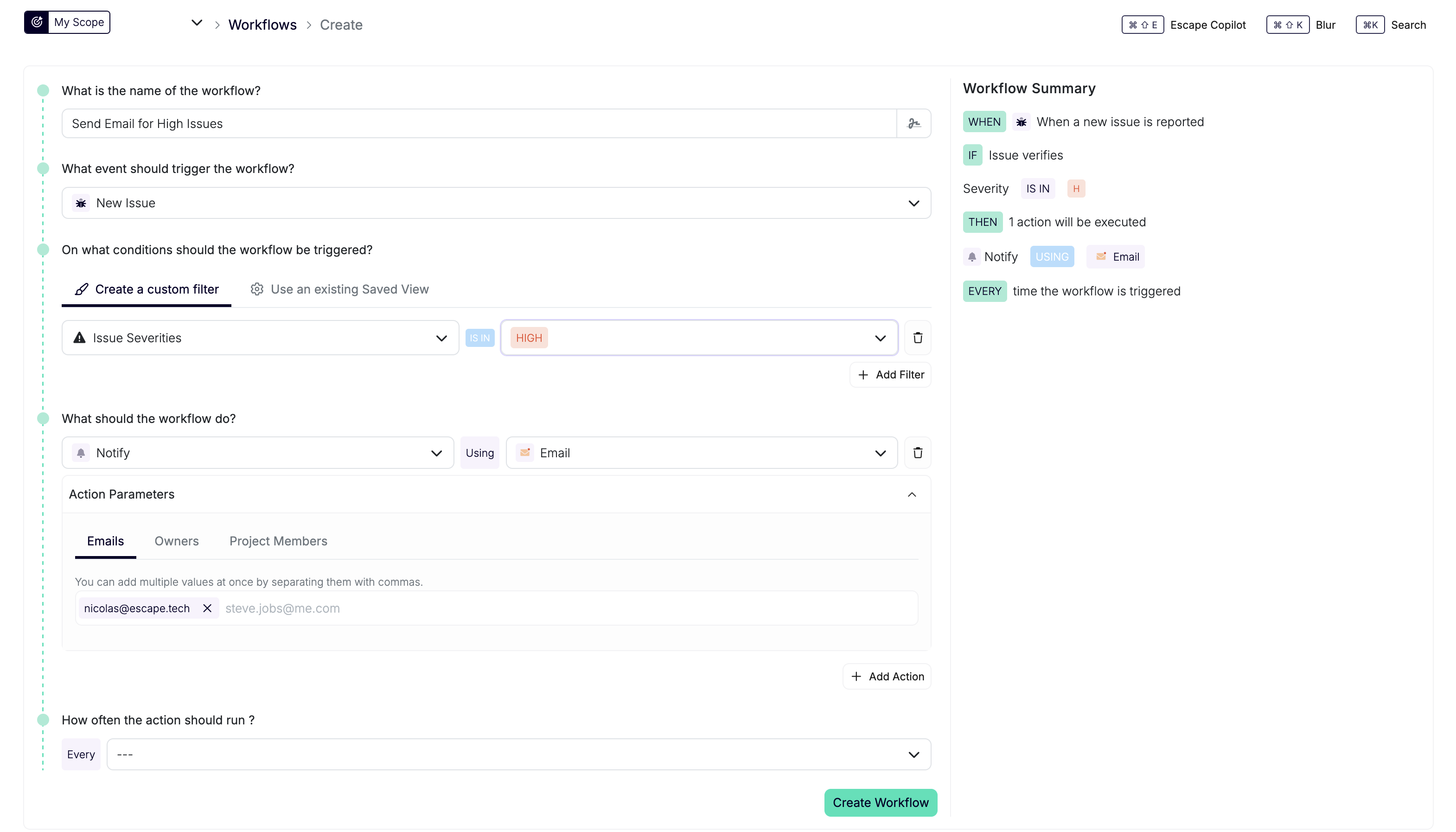
Email notifications are configured as actions in workflows. When creating or editing a workflow:
- Go to Workflows → Create (or edit an existing workflow)
- In the Actions step, add a Notify action
- Select Email as the integration type
- Choose who should receive the notifications:
- Emails: Enter specific email addresses manually
- Owners: Automatically notify owners of the resource that triggered the workflow
- Project Members: Automatically notify all members of the project containing the resource
- Organisation Admins: Notify users with the organization-wide Admin permission
Project Role Recipients
Configure project role recipients through the action schema with to.type: "roles", roles (role IDs), projectIds, and the required global boolean. This is a schema option rather than a recipient tab. Recipient lookup selects role holders in the supplied projects; global doesn't add organization-wide role holders.
Automatic Recipients
When using Owners or Project Members, recipients are automatically inferred based on the resource that triggered the workflow. No manual configuration needed.