Skip to content

Release Notes

#119 · Bulk Edit Assets, Issues and Profiles

You can now perform bulk actions across assets, issues, and scan profiles directly from their respective pages. Apply tags, update statuses, and keep your inventory organized without repetitive manual work - built specifically for teams managing complex or high-volume environments.

What’s new

1.All Assets page:
  • Bulk assign tags: Organize assets more efficiently by applying relevant tags to multiple items at once.

  • Bulk update status: Quickly categorize assets as Monitored, False Positive, Out of Scope, or Deprecated with a single action.

    ![Screenshot 2025-07-30 at 14.02.04.png](320466-bulk-edit-assets-issues-and-profiles/03-185-8be8f491d8c260b4276d8e2843cb1c9ec2298f56.png)
    
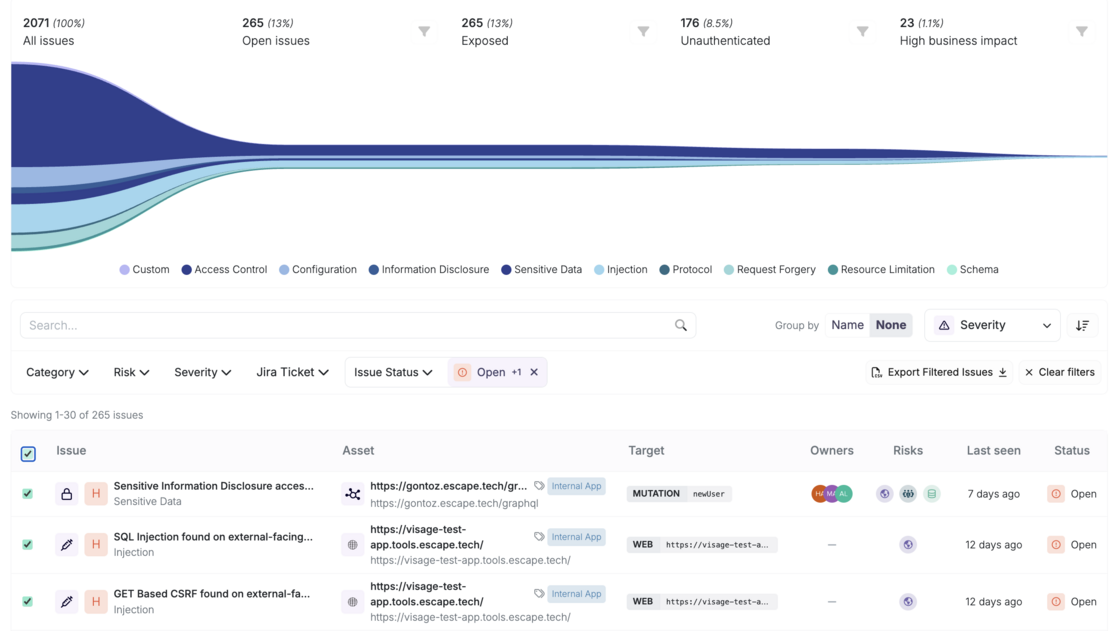
2.All Issues page (when grouped by None):

Easily update the status of multiple issues at once—set them as Open, Need Manual Review, Resolved, False Positive, or Ignored with a single click.

Screenshot 2025-07-30 at 13.20.45.png

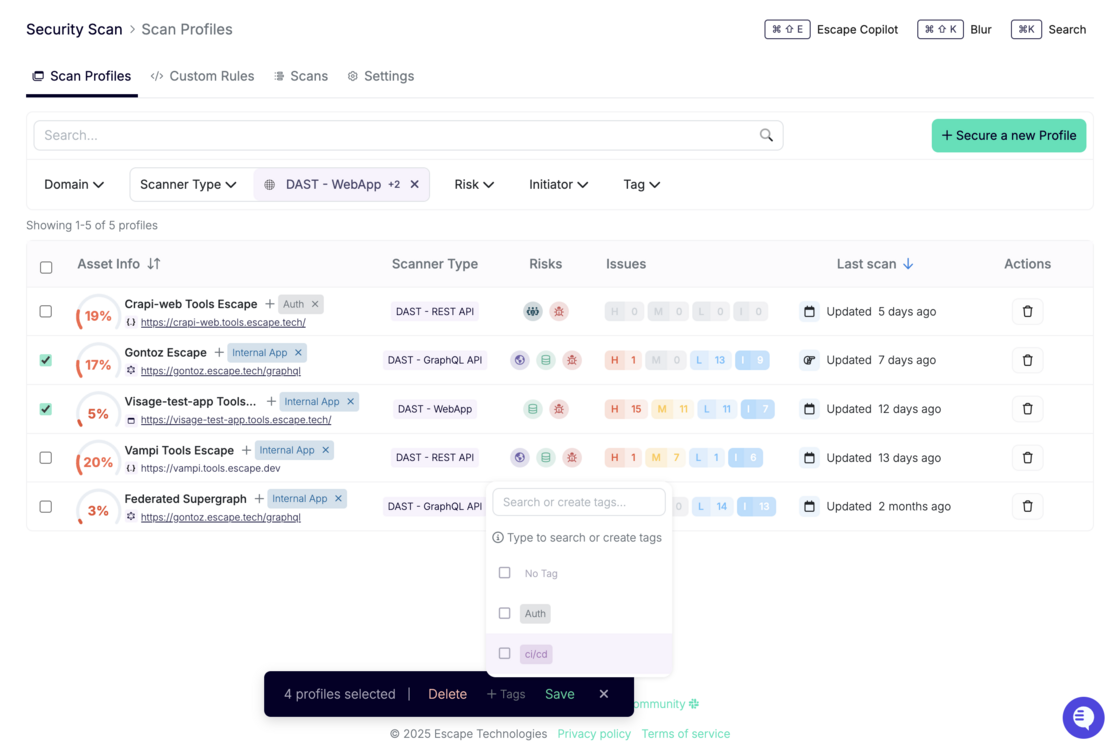
3.Scan Profiles page:
  • Bulk assign tags: Organize assets more efficiently by applying relevant tags to multiple items at once.

new.png

These improvements are designed to streamline your workflow, especially in large-scale environments—so you can maintain a clean, structured inventory without the repetitive manual work.

It’s easy for our team to add more bulk actions if your AppSec team requires it. Got any feedback? Reach out to your dedicated Escape contact!

#118 · New Release: Frontend Custom Rules for Escape DAST

We’re excited to announce that Custom Rules are now available for Escape Frontend DAST.

With this release, you can go beyond Escape’s extensive built-in security tests and, in addition to handling complex authentication flows, define your own detection logic tailored to your applications and business requirements.

What this means for you

  • Adapt to your context: Build rules for specific workflows, sensitive pages, or custom attack scenarios.
  • Scale your governance: Apply your own security policies across multiple applications with a consistent, automated approach.
  • Leverage a simple, powerful language: Define rules in YAML while benefiting from Escape’s inference engine to detect issues dynamically as you navigate the application.

How it works

Custom Rules for Frontend DAST use the same YAML-based format as the Authentication action presets you may already be using. That means there’s no new syntax to learn and you can start defining rules right away.

Each rule is built from three main components:

  • Detectors: Specify the conditions that should trigger an alert, such as matching page content, evaluating JavaScript assertions, or other custom signals.
  • Alerts: Configure the severity, context, and category of the findings when a rule is triggered.
  • Seeders: Optionally guide the scan by pre-seeding it with navigation steps or requests.

You can now create rules for scenarios as simple as detecting a successful login message or as advanced as validating custom security controls in your frontend logic.

Documentation

Full documentation, including examples and YAML specifications, is available here:

Frontend Custom Rules Documentation

With Frontend Custom Rules, you now have the flexibility to extend Escape DAST to cover exactly what matters most to your applications and users.

#117 · AI-Powered Text CAPTCHA Solving is Now Supported

We are excited to announce that you can now automate text-based CAPTCHA solving for your web app testing with Escape!

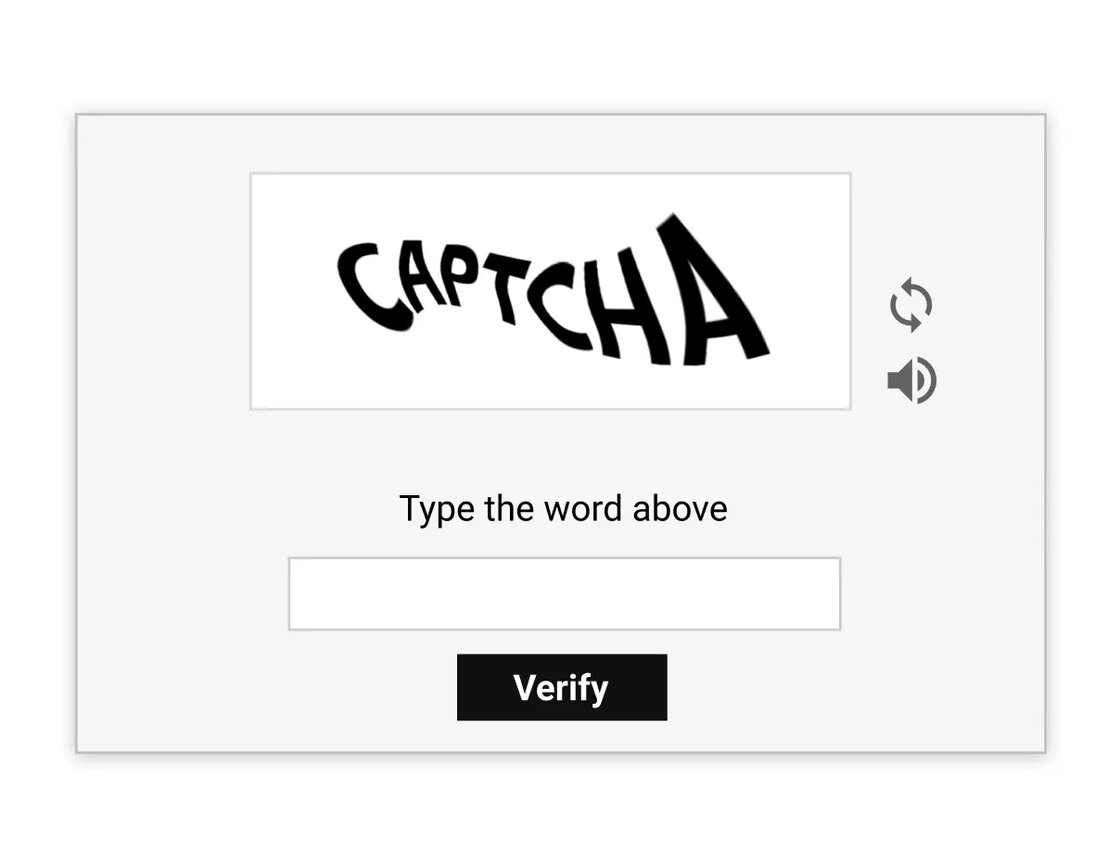
Text CAPTCHAs with combinations of letters and numbers are widely used to prevent automated bots from accessing web applications.

text-based-captcha-example.webp

However, these CAPTCHAs often block automated security scanners from authenticating and testing protected areas of your application, requiring manual intervention to proceed with security testing.

With the new support for AI-powered text-based CAPTCHA solving, Escape’s DAST scanner is now fully equipped to handle these scenarios. You can securely automate testing for web applications protected by text-based CAPTCHAs without manual intervention during the scanning process.

Getting started is easy! Just configure the SolveCaptchaAction object variables under Browser Actions authentication preset or in post_login_actions in the BrowserAgent. Here's an example setup:

presets:
-   type: browser_actions
    login_url: https://example.com/login
    logged_in_detector_timeout: 10
    stealth_mode: false
    users:
    -   username: frontend-user@example.com
        actions:
        -   action: fill
            auto_submit: false
            locator: input[name="username"]
            value: user@escape.tech
        -   action: solve_captcha
            auto_submit: true
            locator: input[name="captcha-input-box"]

Learn how to configure this preset for your needs in our documentation:

#116 · MFA using Time-Based One-Time Passwords (TOTP) is now fully supported in our Web App Scanner

We are excited to announce that Multi-Factor Authentication (MFA) using Time-Based One-Time Passwords (TOTP) is now fully supported in our Web App Scanner!

The use of multi-factor authentication (MFA) significantly enhances identity security by introducing an additional layer of verification beyond traditional login credentials. While this strengthens protection against unauthorized access, it can present a challenge for most of the DAST tools since they are typically designed for unattended execution, where manual interaction – such as approving a sign-in request or entering a time-sensitive code – can disrupt the automation workflow.

With the new support for TOTP-based MFA, Escape’s DAST scanner is now fully equipped to handle these scenarios. You can securely test web applications protected by MFA without needing manual intervention during the scanning process. This means you can automate the security testing of applications that require MFA, ensuring comprehensive coverage while maintaining a streamlined workflow.

Getting started is easy! Just use the Browser Agent authentication preset. Here's an example setup:

presets:
-   type: browser_agent
    login_url: https://auth.example.com/login
    users:
    -   username: frontend-user-with-totp@example.com
        password: pass
        post_login_actions:
        -   action: fill_totp
            auto_submit: true
            locator: input[id="totp-input"]
            secret: '123456'

Learn how to configure this preset for your needs in our documentation!

#115 · Documentation Revamp – Built with Your Feedback

Over the past few weeks, we’ve taken a close look at how users navigate our Public Documentation — and thanks to insightful input of some of the customers and the features shipped since the beginning of the year, we’ve rolled out a major update.

What’s new:

  1. Clearer structure for Escape DAST capabilities

    The DAST section is now split into two distinct areas, so you can go straight to what matters to you: Frontend DAST and API DAST.

Each comes with its own set of detailed pages to help you get up and running fast:

Frontend DAST:

API DAST:

This update is all about reducing friction and helping teams to get value quickly. We’ll keep refining our documentation gradually, so keep the feedback coming!

#114 · Meet Escape Copilot: Automate App and Scan Management via MCP

We’re introducing Escape Copilot (in Beta), a new AI-powered assistant designed to help your security team work more efficiently with the Escape platform.

Copilot-most-important-vuln.png

Powered by the Model Context Protocol (MCP) on the Escape Public API, Copilot understands your unique security setup and helps you get more done in less time by simplifying everyday workflows like managing scans and tracking assets.

It’s especially useful if you:

  • Juggle many services or microservices
  • Run regular scans across multiple apps and environments
  • Need instant access to domain, issue, or posture information

You can learn more about Escape Copilot and read answers to the most common questions (including data privacy and model training) in our official announcement.

What can Escape Copilot do today? (Beta)

Below are the core capabilities available in the beta release:

Application Management
  • Create Applications: Define new applications by specifying essential details such as name, URL, type (e.g., GraphQL, REST, Frontend), location, and configuration.
  • Update Applications: Easily update application details, including name, location, and scheduling options.
  • List Applications: Retrieve a complete list of all applications managed within your platform.
  • Get Application Details: Obtain specific details about any application using its unique ID or name.
Scan Management
  • Start Scans: Trigger scans to identify vulnerabilities.
  • Check Scan Status: Monitor ongoing or recent scans.
  • List Scan Issues: Access detailed reports highlighting vulnerabilities and security issues detected during scans.
  • List Scan Events:Review chronological events associated with scans, providing insights into the scanning processDomain Management
Domain Management
  • Create Domains: Register new domains (FQDNs) to be monitored.
  • Delete Domains: Remove unnecessary or outdated entries.
  • List Domains: View all domains under management.
  • Get Domain Details: Retrieve detailed information about specific domains using their IDs.
Access Scan Archives
  • Get Exchange Archive URLs: Retrieve access to scan exchange archives for further investigation.

Powered by the Model Context Protocol (MCP)

Escape Copilot runs on the Model Context Protocol (MCP) using the Escape Public API. This means every interaction is tightly scoped to your organization’s actual configuration and security data — no pre-training, no external inference, no guesswork.

Copilot only responds based on what’s accessible through your scoped Escape Public API access, ensuring:

  • No external data storage
  • No training on your data
  • Context-aware, action-ready results

It follows strict cybersecurity best practices and puts user privacy first. We recommend sharing only the data necessary for effective interaction.

Try Escape Copilot today

Escape Copilot is now available in beta to all customers!

Just press Cmd + Shift + E (or Ctrl + Shift + E on Windows) to activate Copilot in-app.

Feel free to play around, and we're looking forward to your feedback!

#113 · Updated Handling of Secrets & Sensitive Data in Escape

We’re rolling out a significant evolution in how we surface exposed secrets and sensitive data - laying the groundwork for a new era of AI-powered secret detection and prioritization that will change how you protect your most critical assets.

What’s new

We’ve retired the standalone Exposed Secrets tab in All Risks and the Sensitive Data tab from individual scan reports to unify these findings as standard issues within your risk ecosystem. This shift aligns sensitive data detection with the broader risk framework, making it easier for you to:

  • Understand and prioritize secrets and sensitive data exposures in the proper business context,
  • Quickly triage and remediate through familiar workflows,
  • Leverage powerful filtering and search — by test category, risk type, asset, and more.

How to access your secrets today:

  • Re-running scans will surface new true positives and previously undetected secret combinations.
  • At the application level, visit the Issues tab and filter by Category → Sensitive Data
  • Globally, use All Risks filtered by Risk Type → Sensitive Data

What’s Next: Bringing Inventory-Based Secrets Into the Fold

Currently, secrets discovered through Inventory, Inventory Frontends, and Inventory Integrations are temporarily hidden due to an ongoing migration effort. We’re actively working to restore full visibility here, seamlessly integrating these findings into the new sensitive data experience.

This migration is foundational, enabling us to introduce powerful AI capabilities soon — dramatically improving accuracy, context-awareness, and proactive remediation.

Our new approach will be more than a UI change, we want to genially improve how you handle sensitive data detection:

  • You’ll be able to distinguish what truly matters, differentiating public vs. private data, dev vs. production environments, and sensitive personal info vs. less critical disclosures. For example, leaking personal emails with SSNs is flagged with higher severity than a few generic professional emails.
  • Access validation: You’ll see whether exposed secrets can actually grant access (e.g., AWS keys, DB credentials), reducing false positives.
  • AI-driven prioritization: Leveraging a proprietary machine learning algorithm that is not trained on customer data, Escape will adapt over time, only surfacing sensitive data alerts that pose genuine risk in relevant contexts, learning from your feedback and historical issue handling.

#112 · New Escape CLI Now Available

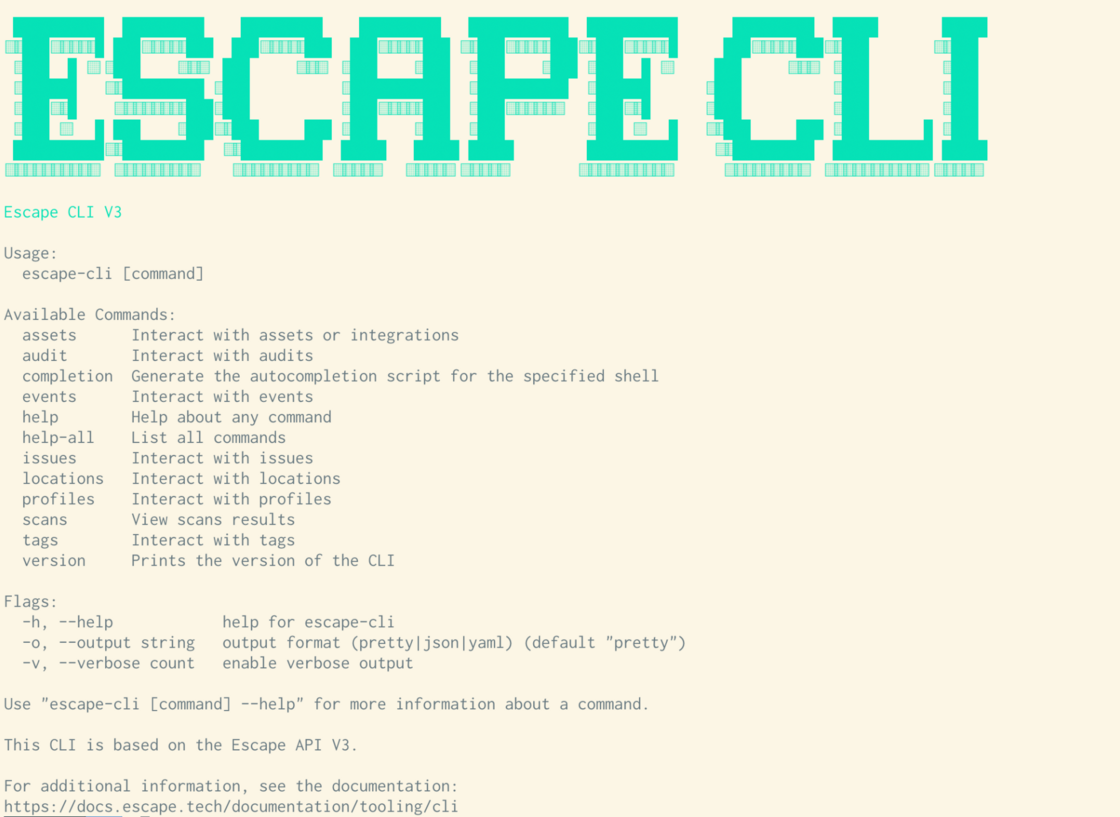
The Escape CLI has been fully upgraded to provide AppSec teams with greater flexibility and control over security testing workflows using Escape DAST. The Escape CLI streamlines how you manage applications, integrations, scan locations, and run scans — all directly from the command line, enabling faster, automated security validation and easier integration into your existing toolchain.

It is now powered by the second version of Escape’s public API and is fully open source, so your team can audit, extend, and contribute with confidence. We carefully review every merge request to ensure contributions are secure and high-quality.

You also don’t have to worry about installing Node.js or juggling dependencies. Just download a single binary, and you’re good to go. Built in Go, the Escape CLI is robust, scalable, and fast even under heavy CI workloads. It’s quick to set up and bundles all the core components you need into a single tool - the CLI plus built-in support for managing private scanning locations and Kubernetes integration.

Available Command Categories:

  • applications – View and update application configurations and schemas
  • integrations – Apply, retrieve, or delete integration settings
  • locations – Manage private scanning locations
  • scans – Launch scans, track status, list issues, and download results
  • version – Check the installed CLI version

For a full list of commands, use the escape-cli help-all command. Usage examples and detailed documentation are available at the Escape CLI documentation.

CI Integration

The CLI can be seamlessly integrated into your CI/CD pipelines, helping automate security testing and ensure continuous validation throughout your development lifecycle. GitLab users can add the recommended configuration to their .gitlab-ci.yml file: GitLab CI Integration Guide

Bitbucket users can refer to the integration guide here: Bitbucket CI Integration Guide

For other CI/CD platforms, please see our general CI/CD documentation.

Once set up, Escape scans will run automatically after each merge request, with results visible directly in your CI environment—helping you catch and address vulnerabilities earlier and more efficiently!

#111 · Customizable Security Test Settings Now Available for API and Frontend DAST

Different organizations have different risk tolerances and prioritization needs. To support this, Escape now lets you configure which security tests are enabled—and how they're prioritized by severity—across your entire organization.

priority-custom-tests-escape.png

What’s new:

  • A new Test Configuration page is now available for both API DAST and Frontend DAST.
  • It provides a full list of security tests, where you can:
    • Enable or disable each test.
    • Assign a custom severity level: Info, Low, Medium, or High.

How it works:

  • Custom severities override Escape’s default severity scoring, which is based on exploitability, CVSS score, vulnerability type, and other risk factors.
  • These settings apply at the organization level, ensuring consistency across all scans.

What you’ll gain

  • Tailor testing to your specific compliance and internal needs.
  • Reduce noise by disabling less relevant tests or deprioritizing less critical findings
  • Establish consistent prioritization logic across teams and applications

#110 · Escape CLI Now Available for Windows

The Escape CLI is now officially supported on Windows, making it easier for security teams to automate scans across their environments.

With the CLI, you can manage applications, integrations, private locations, and scans. Use it to trigger scans manually or integrate Escape directly into your CI pipelines - streamlining security testing at scale.

You can install Escape CLI using the following command:

powershell -c "irm https://raw.githubusercontent.com/Escape-Technologies/cli/refs/heads/main/scripts/install.ps1 | iex"

To check if the CLI is installed, you can run the following command:

escape-cli version

Full Escape CLI documentation and usage examples.